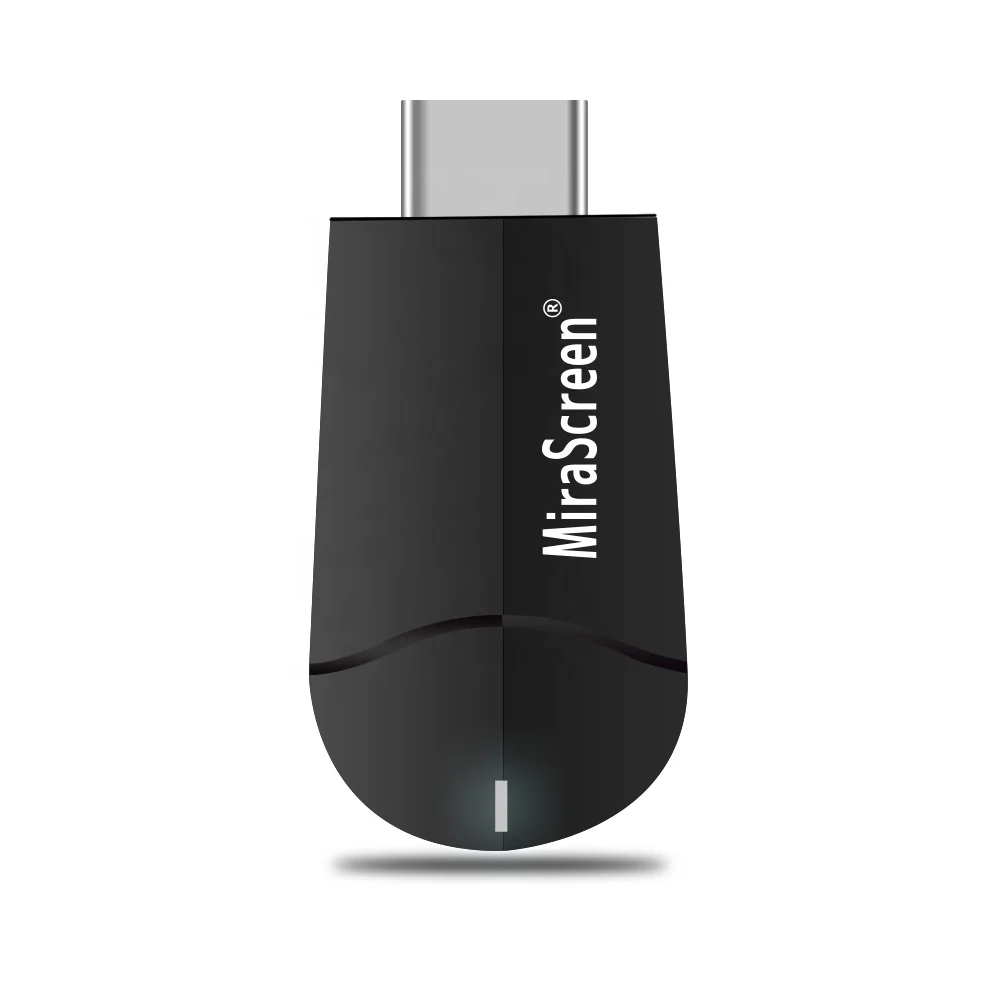
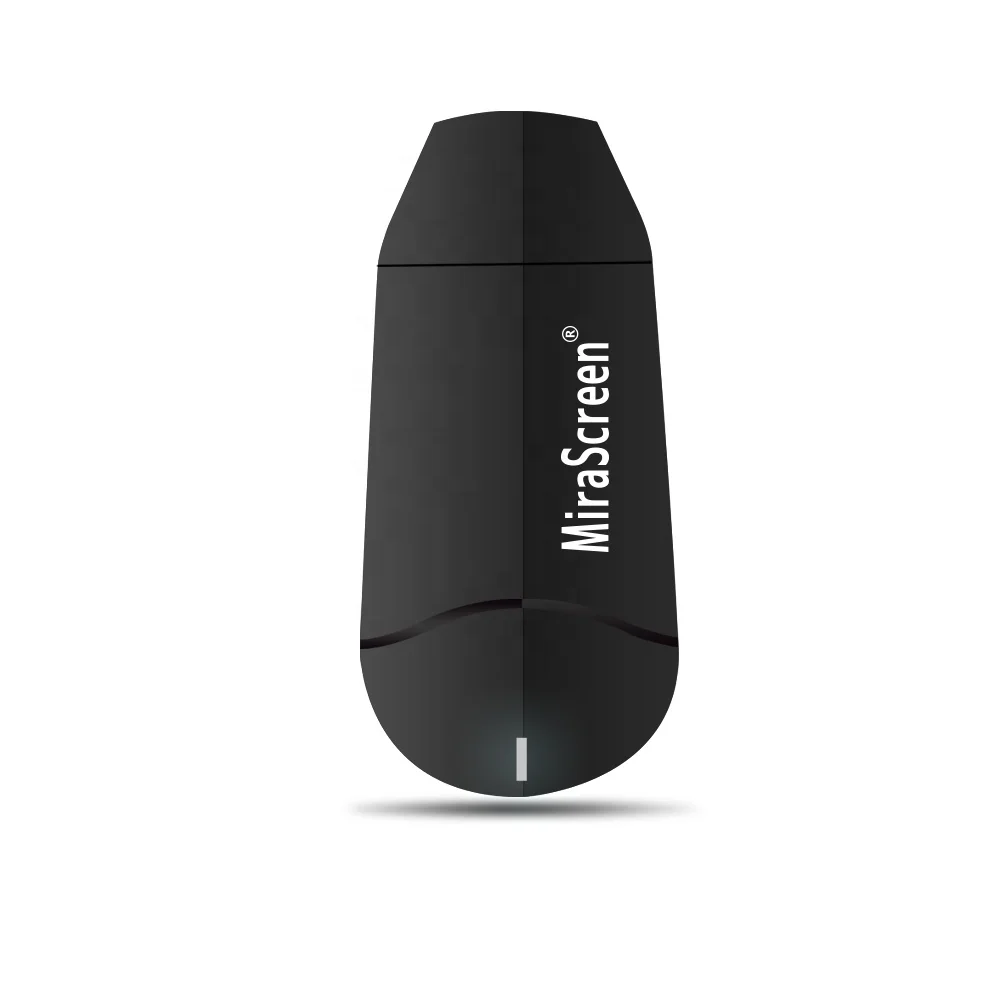
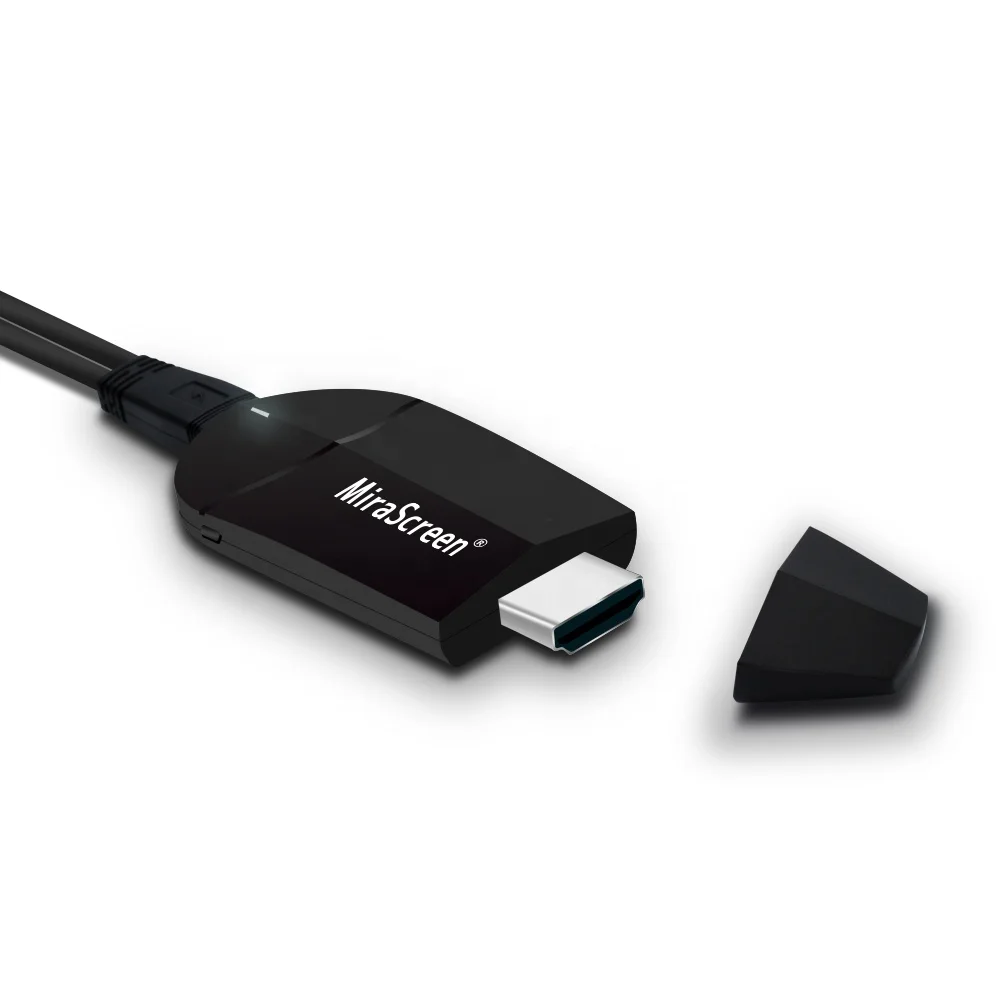
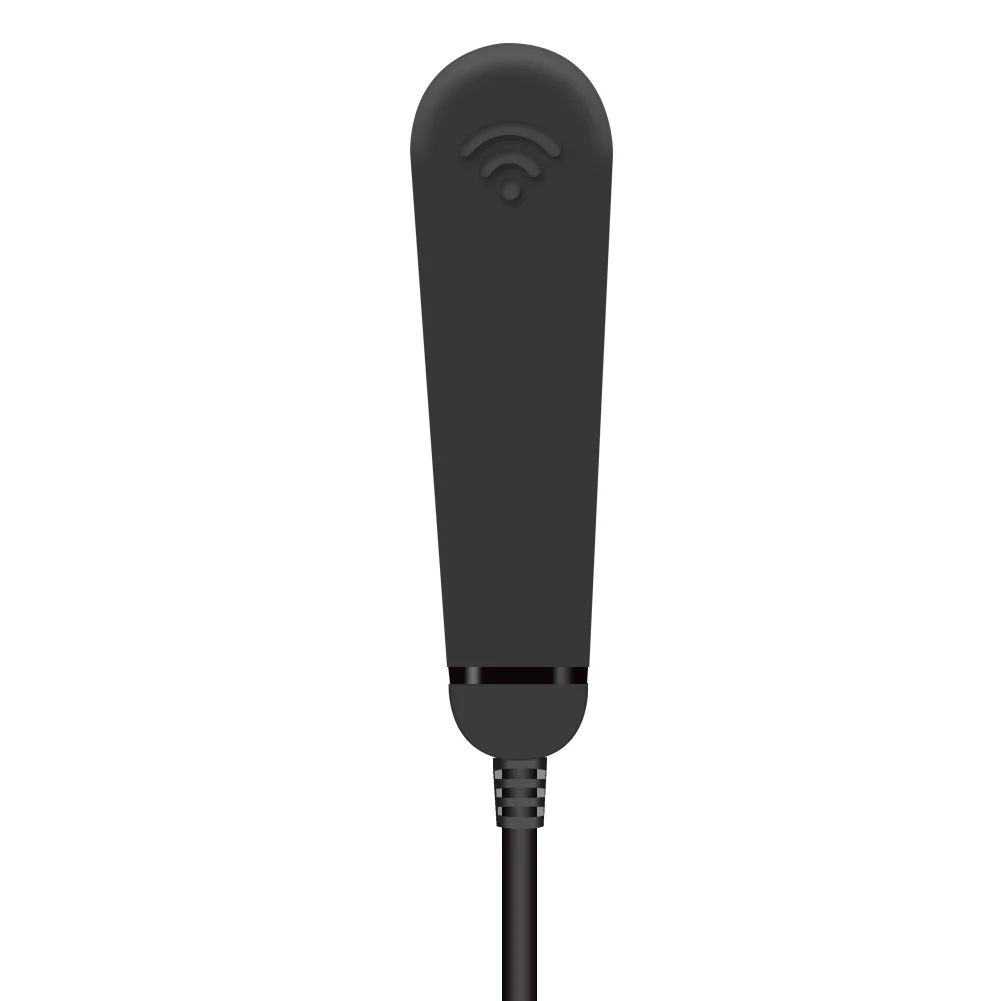
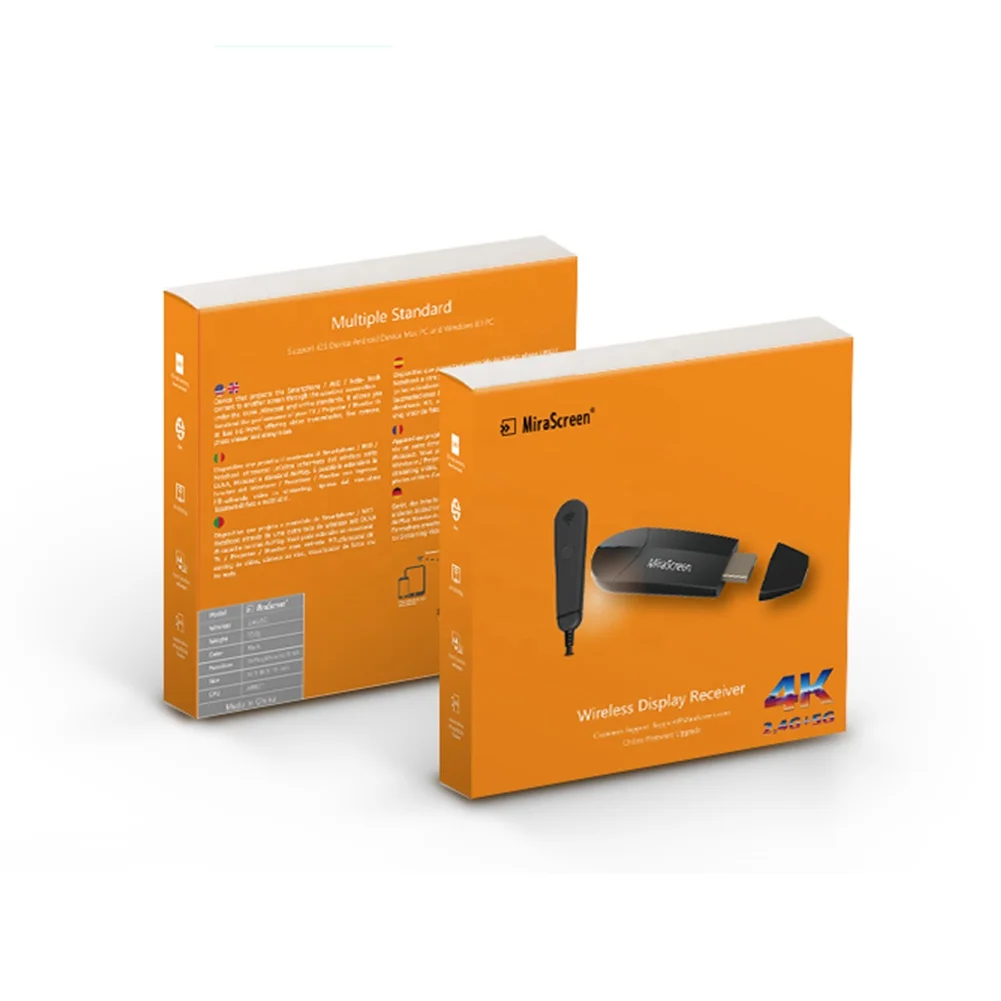
Mirascreen K6 Wireless HDTV Display Adapter, 1080P H.265 Dual Core Dual Decoder Dual Band, Support Miracast Airplay DLNA
- Category: >>>
- Supplier: Shezhen Huajinboer Electronics Limited
Share on (1600158158658):
Product Overview
Description
Product Description
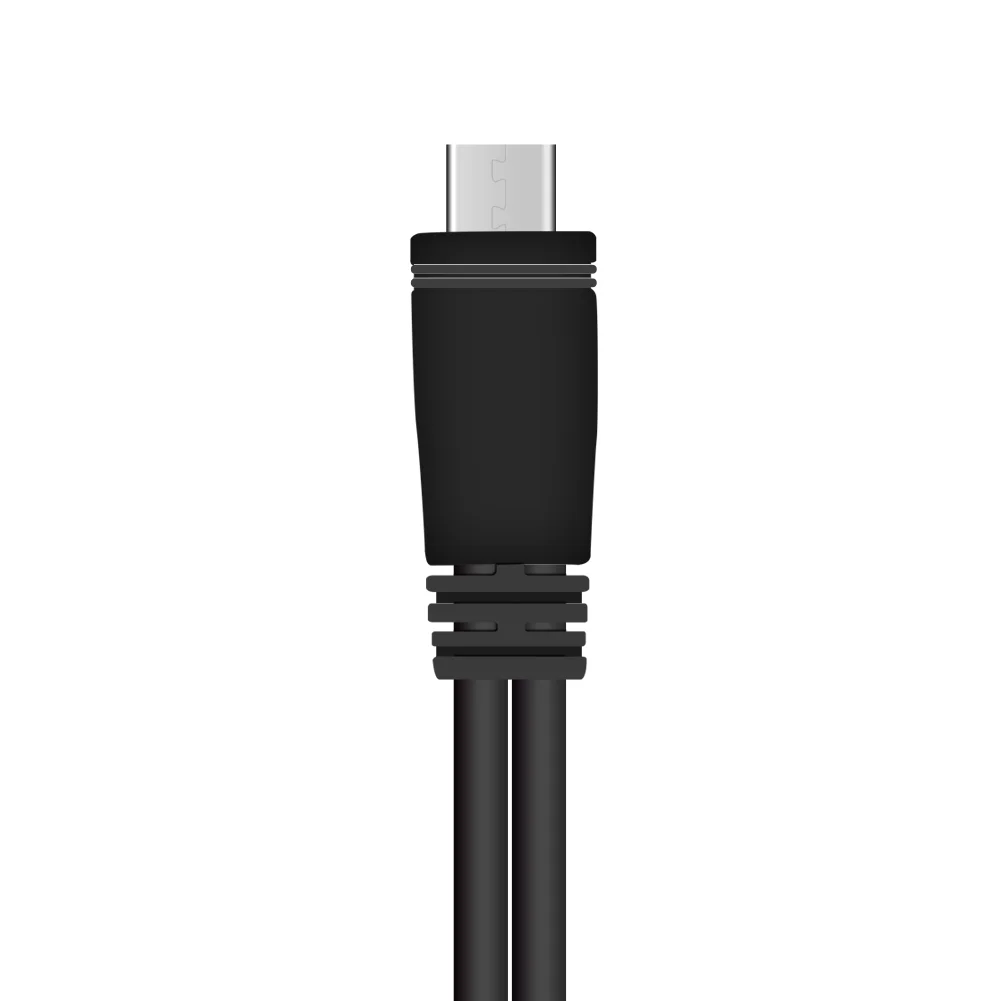
MiraScreen K6 5G Airplay dongle hdtv supports screen mirroring and streaming without mode switching Higher speed Dual Core 1.6G, Dual Decoder(H.265 / H.264), supports High-definition 2K. Installation1. Turn on your TV and power up the Dongle by connecting the USB cable from the dongle to a USB adapter (5V/2A). Please place the Wi-Fi receiver in front of the TV to get a better Wi-Fi reception. 2. Connect the Dongle into an HDTV input port of your TV. 3. Set the right TV input Source 4. Your Dongle now starts up and the main setup screen will display on your TV. Follow the instructions to complete setup Setup for iOS1. Wait for Dongle main screen after power on. 2. [Recommended] connect your Phone to the dongle SSID via Wi-Fi. Launch browser and enter the 192.168.203.1. Select “Internet’ to connect to your home router. 3. Connect your Phone to your home WiFi Router. Swipe up from your Phone screen and turn on AirPlay Mirroring, then select Dongle as target. 4. Your Phone/Pad screen will be shown on your TV. 5. [Recommended] please download App by scanning QR Code to discover more features. Setup for Android1. Wait for Dongle main screen after power on. 2. Turn on your Android menu, and then enable Miracast (multi-screen, wireless display etc.) to search the dongle. 3. Select dongle as target and wait for connection. 4. Your Android screen will be shown on your TV. Reconnect if the connection failed. |
Our Services


Company Information


We Recommend
New Arrivals
New products from manufacturers at wholesale prices