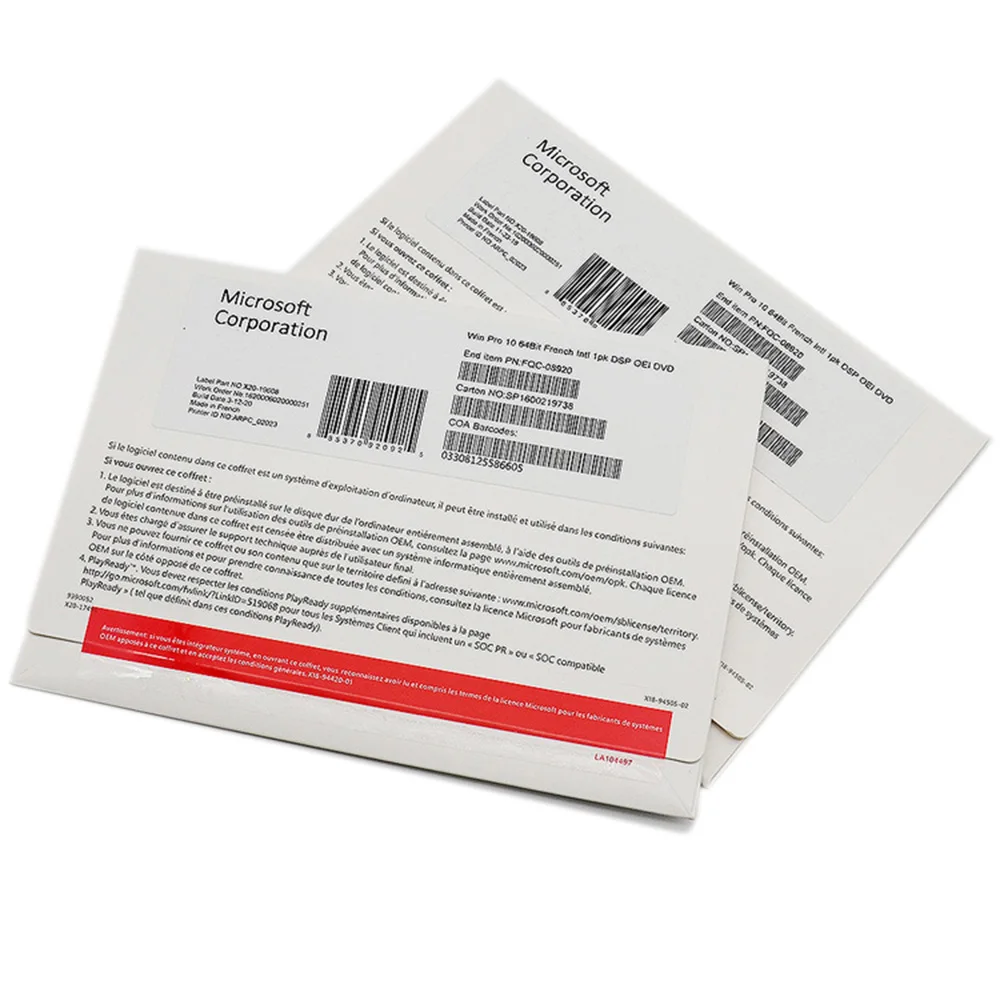
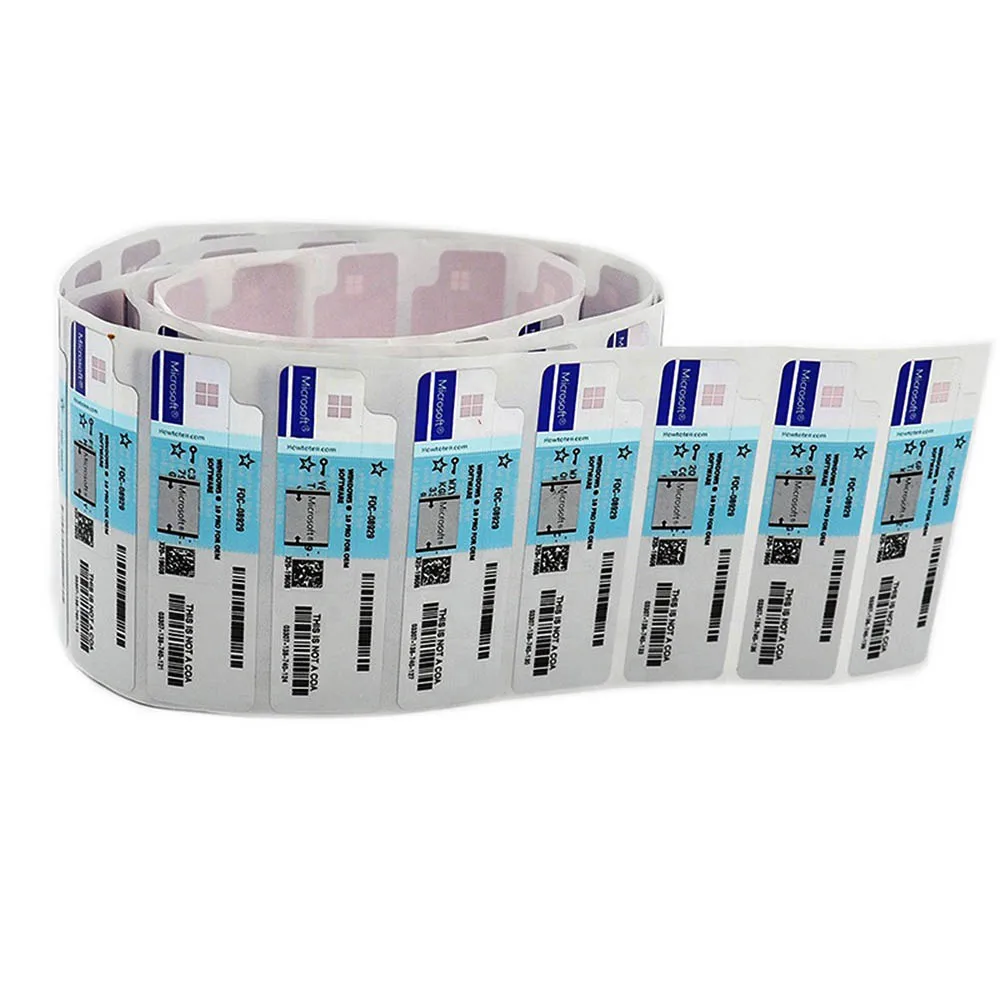
Microsoft Windows 10 Professional OEM лицензионный ключ для windows 10 pro онлайн/загрузка и активация DVD
- Category: >>>
- Supplier: Shenzhen Hanhai Qianda Industrial Co. Ltd
Share on (1600350977757):
Product Overview
Description
Windows 10 Professional

Advantage
*Email Binding
*Online activation
*Phone Activation
*Global Activation
*Language Customized
*Life time Usage
*12 Months Online Support
Product Description
With Windows 10 at the heart of your computer you can do it all.
Built-in security features include antivirus, firewall, and internet protections;
Scan your face or fingerprint with Windows Hello for a fast, secure, and password-free way to unlock your PC.
Focus assist allows you to block notifications, sounds, and alerts for some distraction-free work time.
Your timeline provides a quick and easy way to scroll your most recent documents, apps, and websites;
Microsoft Photos is a simple way to organize, search, edit, and share your photos and videos.
Instantly stream live gameplay, take screen recordings, and control individual audio settings with Game bar.
| Processor | 1 gigahertz (GHz) or faster processor or System on a Chip (SoC) |
| RAM: | 1 gigabyte (GB) for 32-bit or 2 GB for 64-bit |
| Hard drive space: | 16 GB for 32-bit OS 32 GB for 64-bit OS |
| Graphics card: | DirectX 9 or later with WDDM 1.0 driver |
| Display: | 800x600 |
How to Install Windows 10 Home
We've got the steps you need to know to get Windows 10 installed on your computer.
Whether you're putting it on a computer for the first time, upgrading an earlier version of Windows,
or just want to perform a clean installation on a computer that already has Windows 10 on it – we have answers.
1. Make sure your device meets the minimum system requirements For the latest version of Windows 10,
you’ll need to have the following:
CPU: 1GHz or faster supported processor (Here is a list of supported CPUs)
RAM: 1GB for Windows 10 32-bit or 2GB for Windows 10 64-bit
Storage: 32GB of space or more
GPU: DirectX 9 compatible or later with
WDDM 1.0 drriver
Display: 800x600 resolution or greater
Internet connection: Some versions of Windows 10 require an internet connection during setup.
2. Create installation media Microsoft has a tool specifically for creating installation media.
You can download that tool using this link, or by going to this page and selecting “Download tool now” under
the section titled “Create Windows 10 installation media.”
*You’ll need a blank USB drive with at least 8GB of space (or a blank DVD) to put the Windows 10 installation files on.
You’ll need to run the tool, accept Microsoft’s terms, and then select “Create installation media for another PC” when you get to
the “What do you want to do?” page. You’ll select the language and edition of Windows you want as well as whether it will
be 32-bit or 62-bit, and then select the type of media you want to use. Installing from a USB drive is easiest, but you can find
details on using a DVD and ISO file here. You’ll then choose your USB drive from a list of drives, and the tool will download
the necessary files and put them on the USB drive.)
3. Use the installation media
Insert your installation media into the computer you plan to install Windows 10 on,
then access your computer's BIOS or UEFI. This is the system that allows you to control some aspects of your
computer's hardware, and it's built into your motherboard. This step is unique to your specific hardware,
so we can't walk you through exactly what to do. But, you should be able to figure out the process for accessing
this by checking on your computer or motherboard manufacturer’s website.
4. Change your computer's boot order
Advertisement In your computer's BIOS or UEFI, you'll need to find the settings for boot order. This may
show up in a section called "Boot" or "Boot order." This decides which devices are used first when the computer starts up.
The computer won't boot into the Windows 10 installation tool unless the drive it's on is higher up in the boot order than the
drive holding the computer's current operating system. You should move the drive (whether it's your USB drive or a DVD drive)
to the top of the boot order menu.
5. Save settings and exit BIOS/UEFI
Your computer should now boot into the Windows 10 installation tool, which will guide you through the process of setting up Windows 10 on your computer.
Windows 10 Home VS Windows 10 Pro
| WINDOWS SECURITY | ||
| Feature | Windows 10 Home | Windows 10 Pro |
| Windows Hello1 | √ | √ |
| Device encryption2 | √ | √ |
| Firewall and network protection | √ | √ |
| Internet protection | √ | √ |
| Parental controls / protection | √ | √ |
| Secure Boot | √ | √ |
| BitLocker device encryption3 | √ | |
| Windows Information Protection (WIP)4 5 | √ | |
| Windows Defender Antivirus | √ | √ |
| Business Management and Deployment | ||
| Feature | Windows 10 Home | Windows 10 Pro |
| Mobile device management14 | √ | |
| Group Policy | √ | |
| Enterprise State Roaming with Azure15 | √ | |
| Microsoft Store for Business16 | √ | |
| Assigned Access | √ | |
| Dynamic Provisioning | √ | |
| Windows Update for Business | √ | |
| Kiosk mode set-up | √ | |
| Support for Active Directory | √ | |
| Support for Azure Active Directory | √ | |
Related Products
Window 10 Home | Windows 10 Pro USB | Windows Server 2019 STD |
Windows Server 2019 Data center | Office 2016 Server | Office Standard 2016 |
We have Multi - software for option,Welcome Inquiry for more Details!
Our Services
1.Online Living Support ;
2.Fast Delivery ;
3.Price Competive ;
4.Products Original Offer ;
5.12 months Online Support;
6.Life time usage ;
7.Respond in Time ;
8.After-Sales Technology Support;
9.Customized Service ;
10.Mass orders price discount
Note:We can send a Product activation key by email, it is a lifetime license ;
once installed you have the software for lifetime. You can quickly download Windows 10 Home,
No need to wait for shipping and pay for customs duty, Support is provided through email with a response guaranteed within 24 hours.
Company Information


Shenzhen Hanhai Qianda Industrial Co., Ltd
is a technology import and export trading company focusing on software products and integrating retail and wholesale.
High quality products, professional technical team, and perfect sales service make our company in a dominant position in the same industry.
Our company's main products are all kinds of hardware and software equipment, the main software products include windows operating system,
Microsoft Office suite, Windows server products, Internet Security and anti-virus software. We will help you choose the perfect product, install and activate it,
so that you can enjoy your software instantly. We are committed to providing every customer with the best quality products and service.
Packaging & Shipping

FAQ
Q: Is this a trial key or will the key expire?
A: No, this is not a trial key. The key will never expire. Sure, for the Microsoft Office 365, Office 365 is subscribed monthly or yearly.
Q: Has the key ever been issued to anyone else or previously activated?
Q: Has the key ever been issued to anyone else or previously activated?
A: No, the key has never been issued to anyone else, nor has it been previously activated. Key is not retrieved from Microsoft’s system until such time as buyer purchases key.
Q: Will the key allow for Windows 10 product updates?
A: Yes, the key will allow for Windows 10 updates for the life of the computer or installation.
Q: Will the Windows or Office key allow for tech support from Microsoft?
Q: Will the key allow for Windows 10 product updates?
A: Yes, the key will allow for Windows 10 updates for the life of the computer or installation.
Q: Will the Windows or Office key allow for tech support from Microsoft?
A: Yes, the key will allow for telephone tech support directly from Microsoft.
Q: How can I know the key for 1PC/Mac or multiple devices?
A: Please send the more details inquiry for us, the details will send you.
Q: How can I know the key for 1PC/Mac or multiple devices?
A: Please send the more details inquiry for us, the details will send you.
We Recommend
New Arrivals
New products from manufacturers at wholesale prices