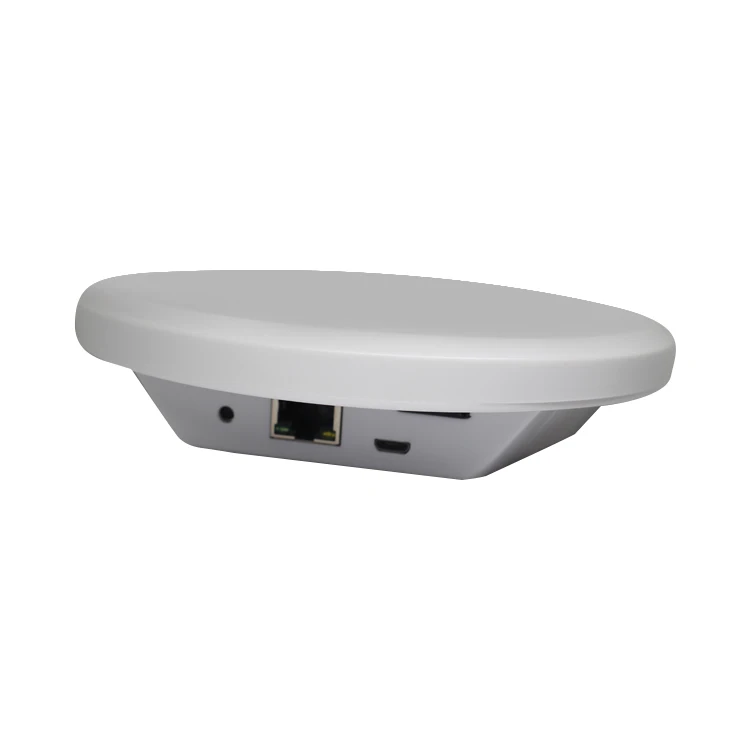
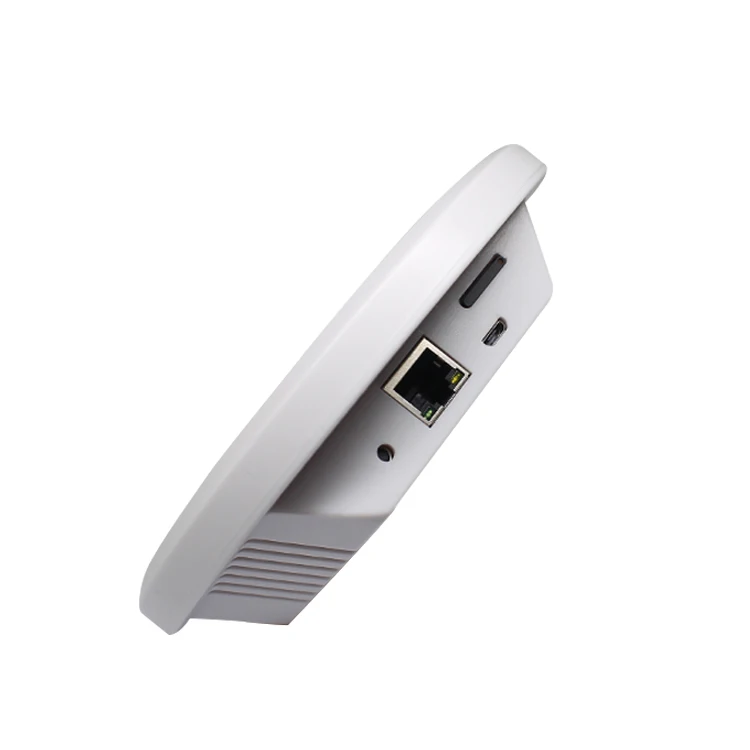
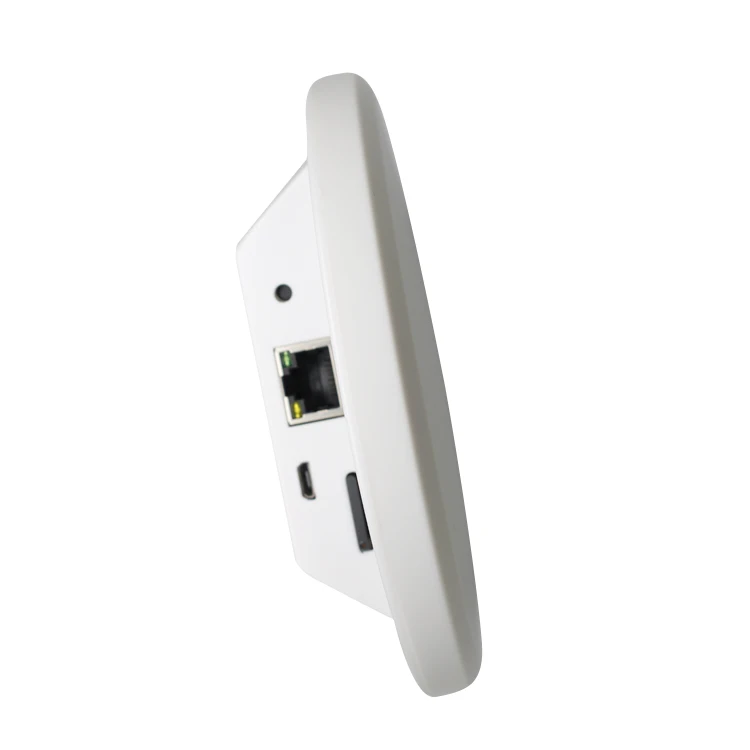
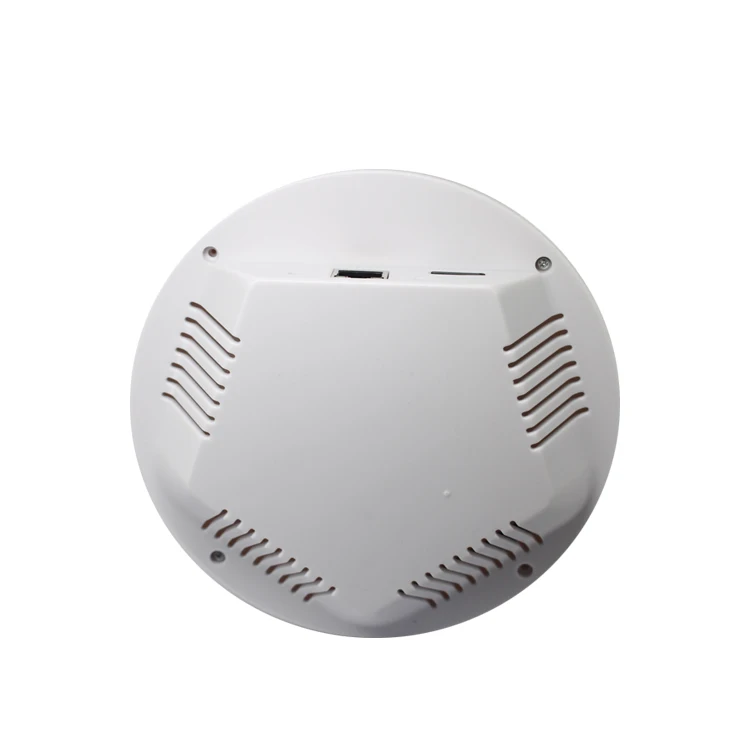
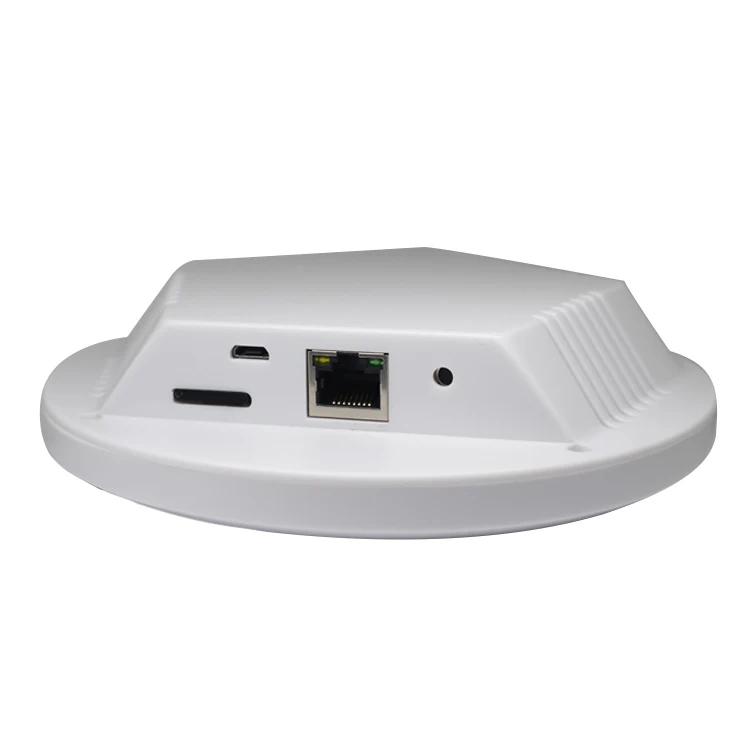
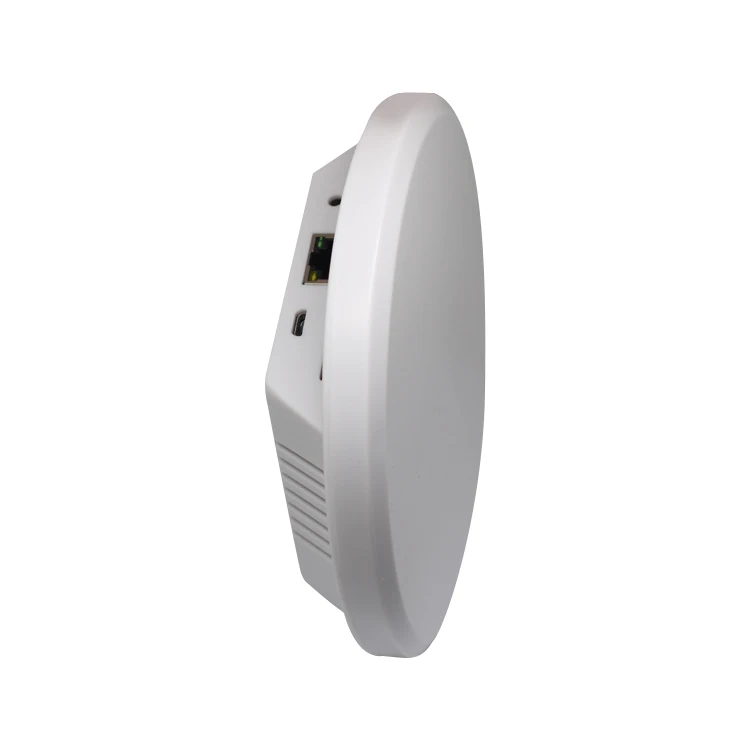
BLE Gateway for Industrial 4g,manufacturer Direct Sales Gateway Server 4g Router Gateway
- Category: >>>
- Supplier: Shenzhen Radioland Technology Co. Ltd.
Share on (1600425806601):
Product Overview
Description
Products Description

FEATURES
• URF52832 BLE chip, ultra-high BLE receiving sensitivity for wide-range monitoring
• Cortex-M4 microcontroller core, ultra high speed processing speedSupport MQDT, HTTP and websocket three data upload methods
• Scan a variety of medium BLE data types (Connectable undirected advertisement. Connectable directed advertisement. Scannable undirected advertisement, Non-Connectable undirected advertisement and Scan Response
• Filterable by RSSI
• Built-in watchdog to ensure product stability
• Cortex-M4 microcontroller core, ultra high speed processing speedSupport MQDT, HTTP and websocket three data upload methods
• Scan a variety of medium BLE data types (Connectable undirected advertisement. Connectable directed advertisement. Scannable undirected advertisement, Non-Connectable undirected advertisement and Scan Response
• Filterable by RSSI
• Built-in watchdog to ensure product stability
• Support software upgrade

APPLICATIONS
Indoor Positioning,Parking management system, Humidity monioring, Light detection,Asset Management,Remote monitoring HR management,Automation industry


CONFIGURING THE GATEWAY
1.Prepare a 5V/2A power adapter, pay attention to the power must be enough
2. Connect the gateway to the router with a network cable. Please use the black micro usb cable we sent to the power supply cable.Connect the power cable to the power adapter. Do not connect the USB cable directly to the computer. Power supply will not be
enough. If the yellow light of the network port is on, the network is connected
enough. If the yellow light of the network port is on, the network is connected
3. Install the configuration tool on the same router and open it. It must be the computer under the same router, otherwise the search tool wil1 not search. Click Reload to search for the gateway, then select the gateway with the same mac address as the qateway shell

4. After entering the configuration tool, some information about the gateway is displayed, including the Fimware Version. Hardware Version, MAC address, production number and IP address

5. In the Network section, you can configure the gateway to connect to WIFI. After the WIFI connection is successful, the Ethernet disconnect configuration tool can also be connected to the network. The device only supports 2.4G wireless network. Please check if the router is a 5G network. In addition, the SSIDs of 2.4G and 5G cannot be the same. because in this case. it is difficult for the device to connect to the WiFi network

6. gateway data upload protocol and data upload Select the data upload protocol in connection type, support Websocket. HTTP and MQTT. If you are testing the gateway, you can choose the MQTT mode. Others select the default option and click Save to save the configuration. The gateway starts scanning data and uploading data

7. Open the data viewer tool data viewer software (only supports 64-bit Windows. 32-bit system cannot be used). Just fill in the beacon in the MQTT Topic fil1, other options default and then click TEST to get the data

Related Products
Company Information


Workshop


Exhibition

Certifications

Packing&hipping

FAQ

We Recommend





New Arrivals
New products from manufacturers at wholesale prices