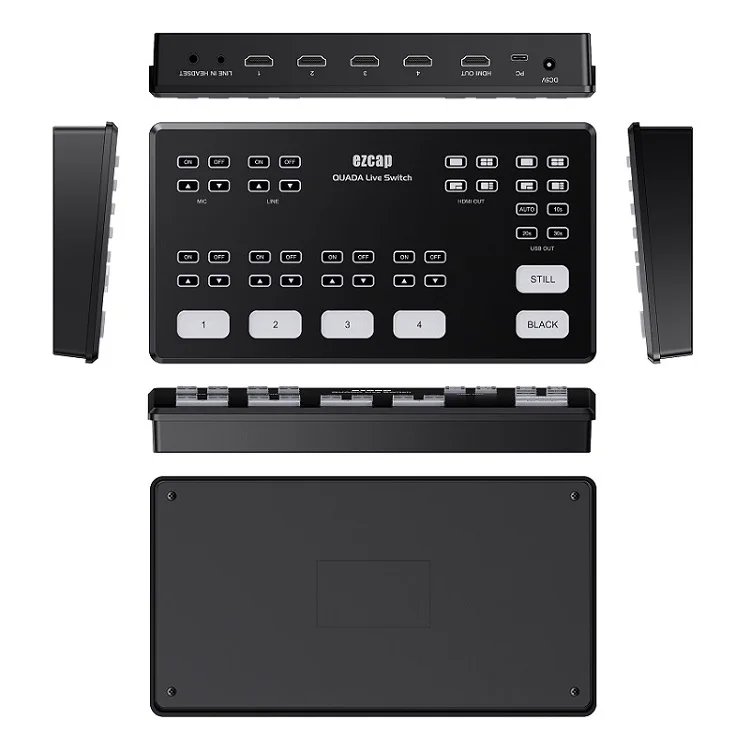
ezcap328 QUADA Live Switch 4 Channels HDMI to USB C Video Capture Live Stream Video Switcher
- Category: >>>
- Supplier: Shenzhen Forward Video Technology Co. Limited
Share on (1600567844240):
Product Overview
Description
ezcap328 QUADA Live Switch 4 Channels HDMI to USB-C Video Capture Live Stream Video Switcher

Multi Camera Live Production
ezcap328 QUADA Live Switch makes easy to create professional multi camera productions for live streaming to YouTube and innovative business presentations using Skype or Zoom! Simply connect ezcap QUADA Live Switch and you can switch live up to 4 high quality video camera inputs for dramatically better quality images. Or connect a computer for PowerPoint slides or gaming consoles. The ezcap QUADA Live Switchallows exciting picture in picture effects, perfect for commentary! There are loads of video effects too! ezcap328 QUADA Live Switch has USB 3.1 Type-C output that works like a webcam so you can use any streaming software.

Fast Video Production with Live Streaming
Live production is the fastest way to complete a finished program, plus you can stream it to a live global audience via YouTube at the same time. The USB webcam output of ezcap QUADA Live Switch works with any streaming software to popular social media platforms! With up to 4 HDMI inputs, depending on the model, you can set up multiple camera angles such as wide shots and close ups of each person in the performance. Then connect to a computer with a PowerPoint slide show or websites and gaming consoles. All switching is in real time so you can live stream your show to platforms such as YouTube, Facebook, Twitch and many more.

Self Control Broadcast Quality Switch
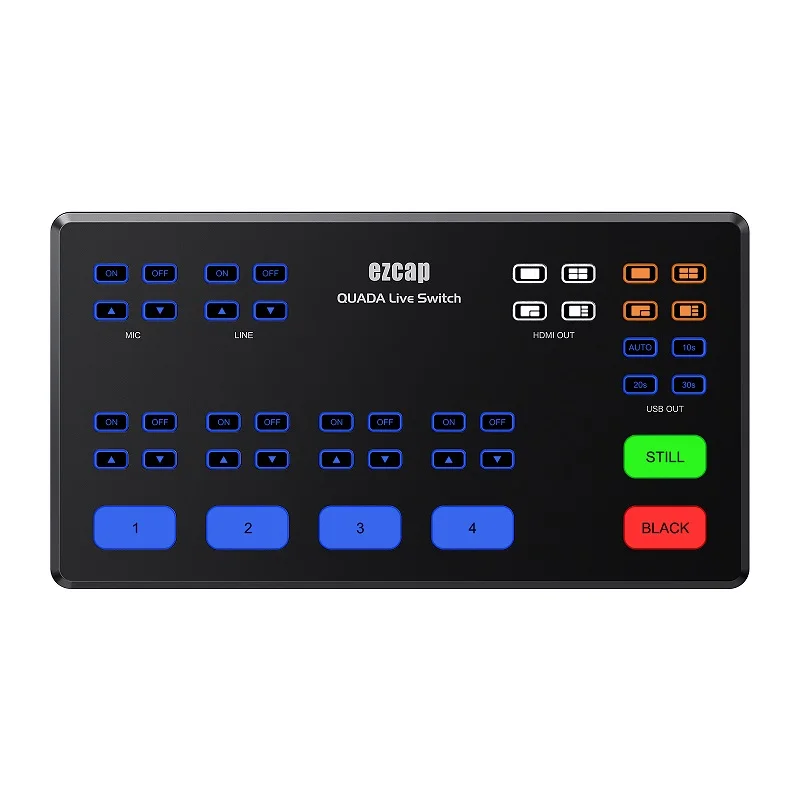
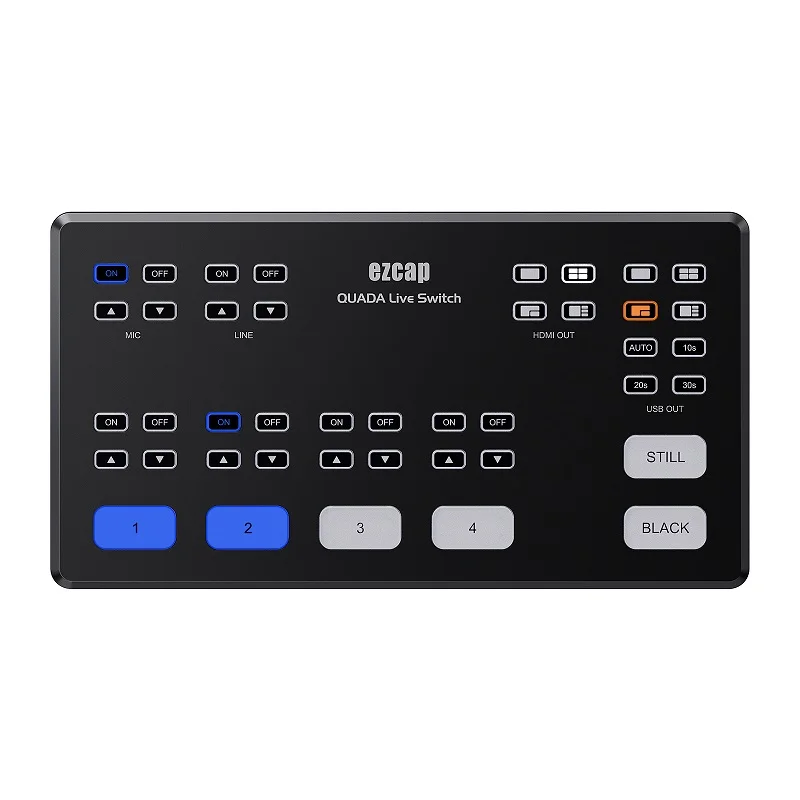
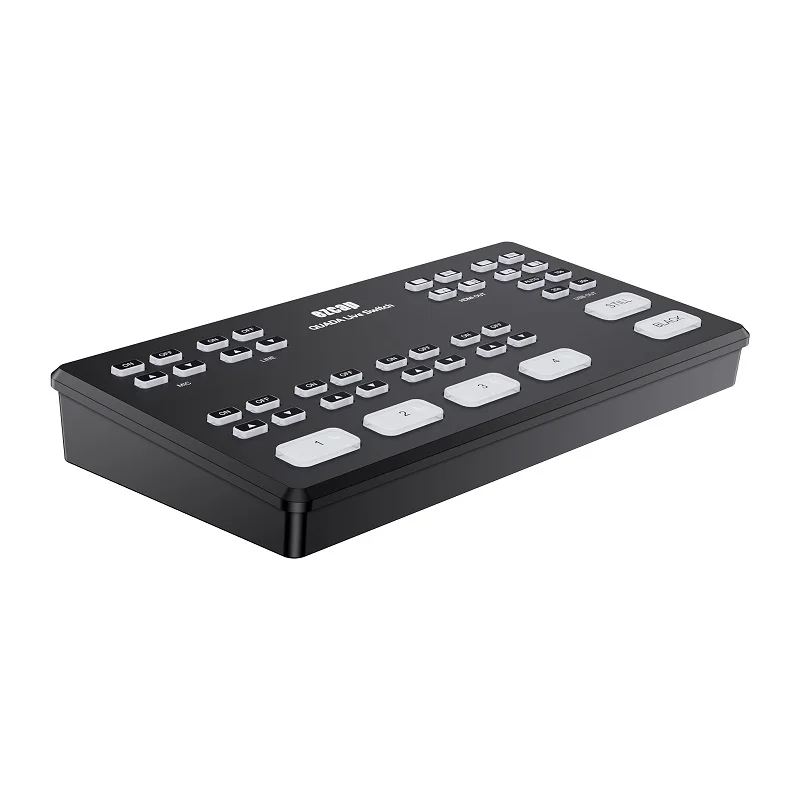
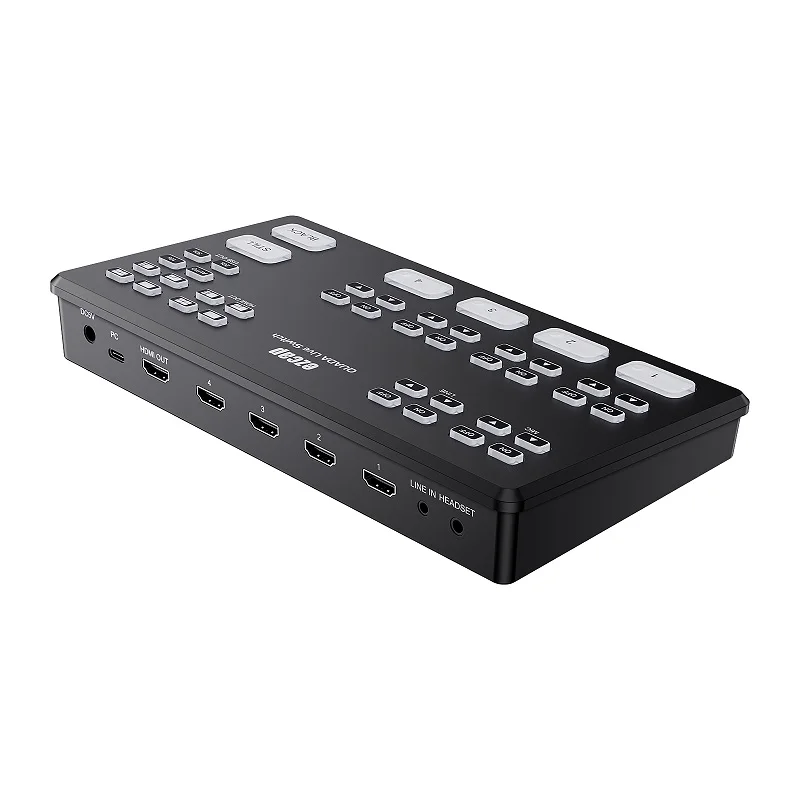
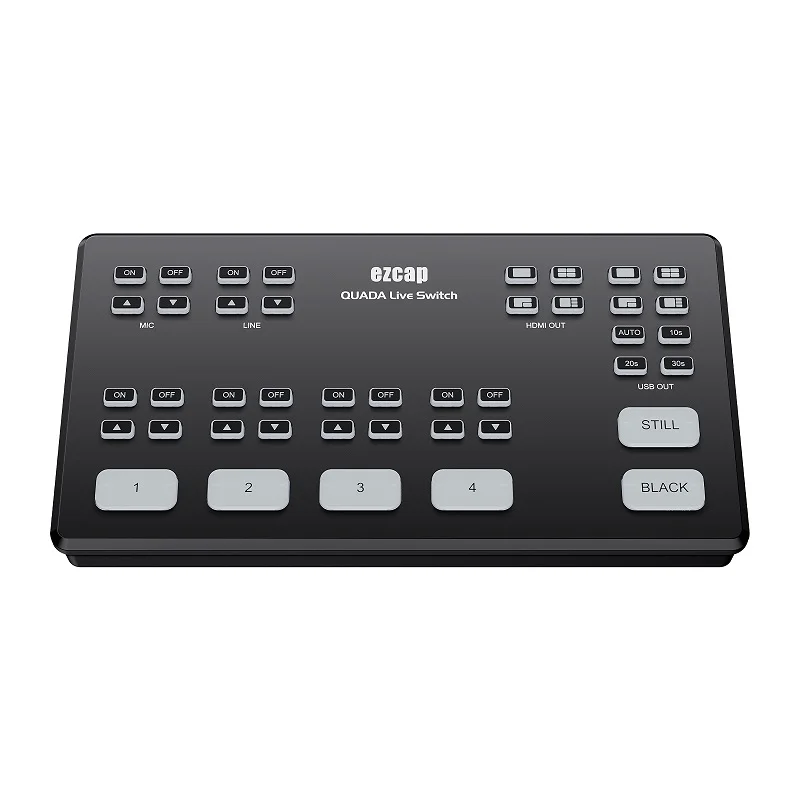
ezcap QUADA Live Switch’s compact all in one design includes both a control panel as well as connections. The front panel includes easy to use buttons for selecting sources, video effects and transitions. The source buttons are large so it’s possible to use it by feel, letting the presenter do the switching! You even get buttons for audio mixing! On the rear panel there are HDMI connections for cameras or computers, extra microphone and mixer inputs, USB for webcam out plus an HDMI output for program video.

Fast to Learn, Easy to Use

Connect up to 4 Independent Cameras
With 4 HDMI inputs, you can connect multiple cameras for different views. Video cameras with HDMI outputs are better quality than simple webcams as they use higher quality lenses and have better low light sensitivity. All video sources will re-sync to the switcher if they operate at different video standards so you don't have to worry about connecting video devices as they all just work! Cameras with HDMI often support interchangeable lenses so you can change to wide angle lenses for wide shots and zoom lenses for close ups. Imagine taking advantage of the low light capability of better cameras for theater production, weddings, school concerts.

USB Webcam Output

Work with Microphone and Mixer
With two independent 3.5mm stereo audio inputs, you can connect lapel microphone, you can even connect a music player to generate introduction music after the live stream commences but before the program starts. All audio inputs to ezcap QUADA Live Switch include buttons on the panel for adjusting audio level and enabling inputs into the audio mixer. ezcap QUADA Live Switch features audio mixer with all HDMI inputs and both microphone and line in inputs are all connected to the audio mixer so you can live mix from all audio sources. The ezcap QUADA Live Switch also includes a headphone output.

Connections

| 1. HEADSET - 3.5mm CTIA headset for microphone input and earphone output, or use included 4-pole to 3-pole audio cable to connect with TRS microphone and earphone. |
| 2. LINE IN - 3.5mm TRS audio line input,connect to audio source device such as Mixer by included 3.5mm audio cable. |
| 3. 1/2/3/4 – HDMI input, to connect four channel HDMI sources input by HDMI cable. |
| 4. HDMI OUT – HDMI output, to connect to television by HDMI cable to monitor video. |
| 5. PC – USB-C port, connect to computer USB 3.0 port by included USB cable. |
| 6. DC5V – Connect to 5V/2A DC power adapter. |
| 7. HDMI OUT buttons - To switch view mode to monitor video sources status on television. |
| 8. USB OUT buttons - To switch streaming video view mode on streaming application, and automatically switch video source following the different interval time. |
| 9. STILL button - To still and mute the current streaming video. |
| 10. BLACK button - To switch the current streaming video to black view and mute. |
| 11. HDMI inputs video switch buttons – To switch the single channel video for live streaming. |
| 12. HDMI inputs audio control buttons – To control the audio from four channel HDMI inputs. |
| 13. LINE buttons – To control the audio from line in audio. |
| 14. MIC buttons – To control the audio from microphone. |
SPECIFICATIONS
Interface: USB 3.1 Gen1, USB Type-C
Video Input: HDMI x 4
Audio Input: HDMI embedded x 4, 3.5mm 3-pole TRS line input, 3.5mm 4-pole CTIA microphone input.
Video Output: HDMI
Audio Output: HDMI embedded, 3.5mm 4-pole CTIA earphone output.
User Interface: Switch and control buttons and indicators.
Resolution: 480p60, 576p50, 720p50/p60, 1080i50/i60, 1080p30/p50/p60.
USB Output Format: NV12, YUY2, RGB
Power Supply: DC 5V2A
Dimensions: 240(L) x 129(W) x 35(H) mm
Weight: 450g
Interface | USB 3.1 Gen1, USB-C type. |
Video Input | 4 channel HDMI. |
Audio Input | 4 channel HDMI, 3.5mm TRS Line In, 3.5mm CTIA headset jack. |
Video Output | HDMI |
HDMI, 3.5mm CTIA headset jack. | |
User Interface | Switch and control buttons and indicators. |
max 1080p60. | |
USB Output Format | NV12, YUY2, RGB |
Power Supply | 5V2A power supply |
Dimensions | 240(L) × 129(W) × 35(H) mm |
Weight | 450g |
FEATURES
- Connect up to 4 cameras or camcorders.
- USB-C outputs as an USB webcam for all streaming software.
- Buttons are easy to use for selecting sources, multi view effects, switching and mixing audio.


We Recommend
New Arrivals
New products from manufacturers at wholesale prices