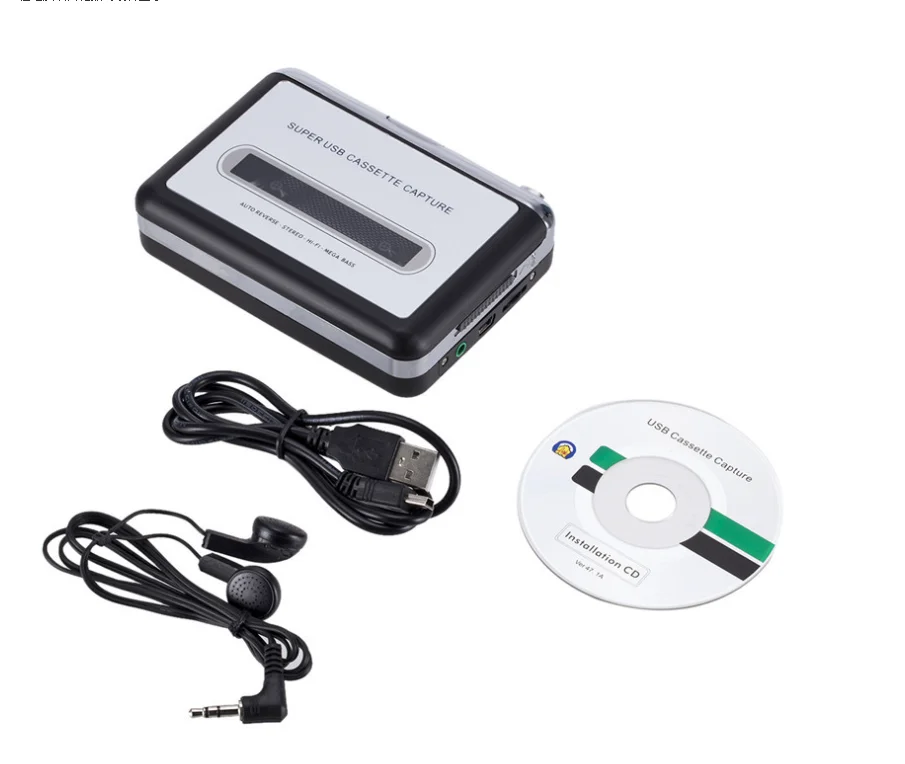
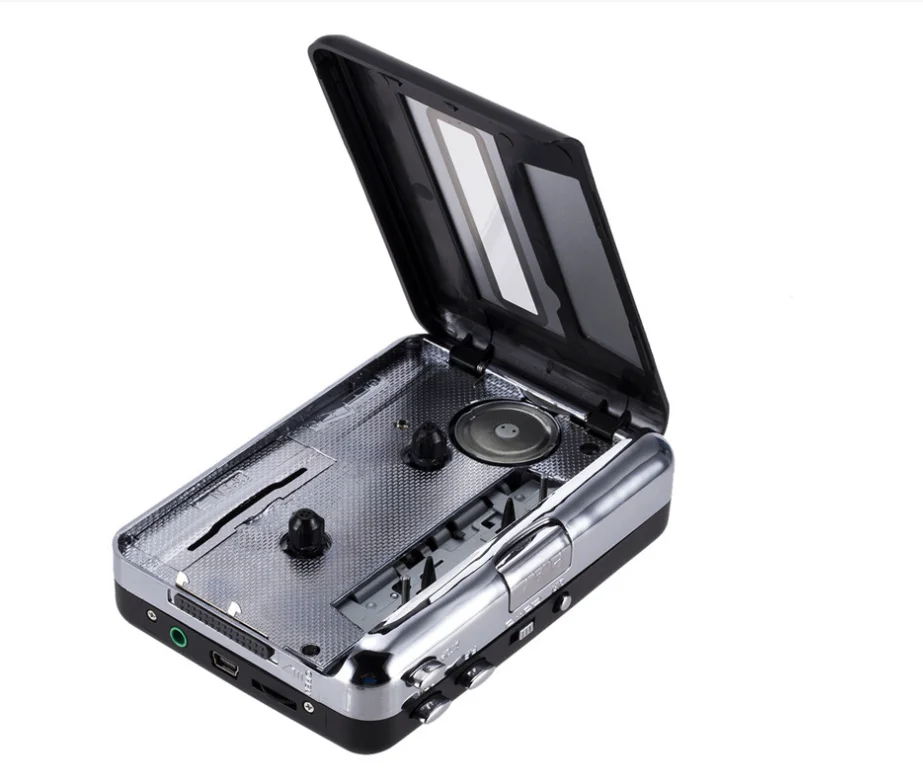
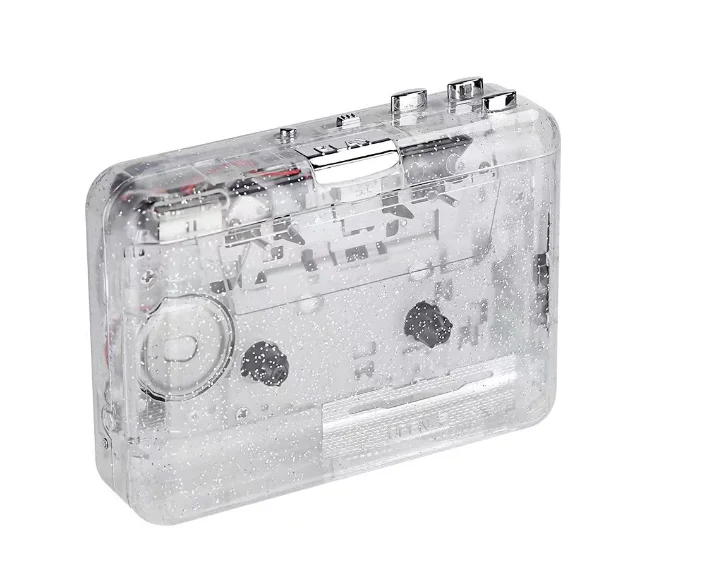
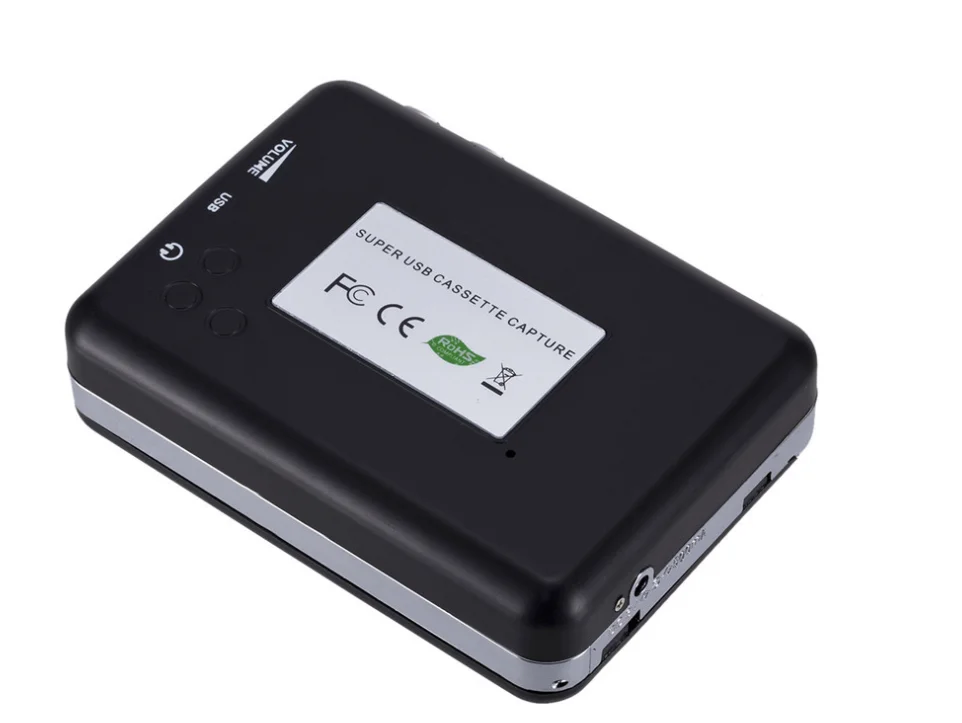
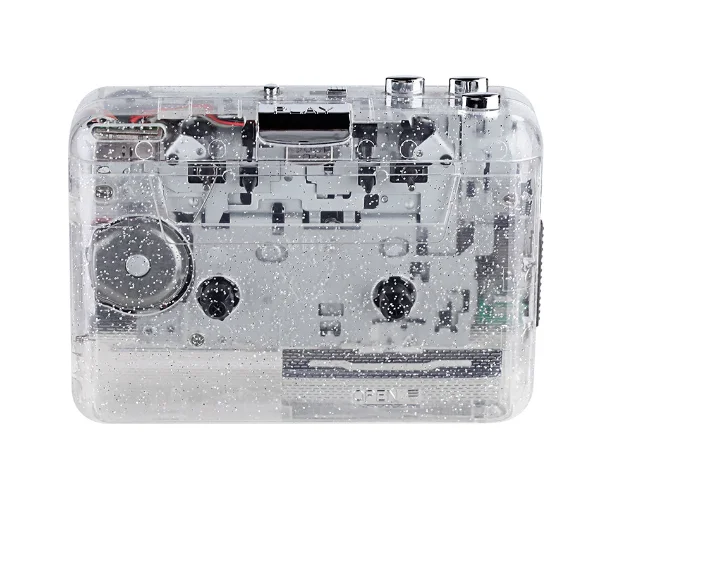
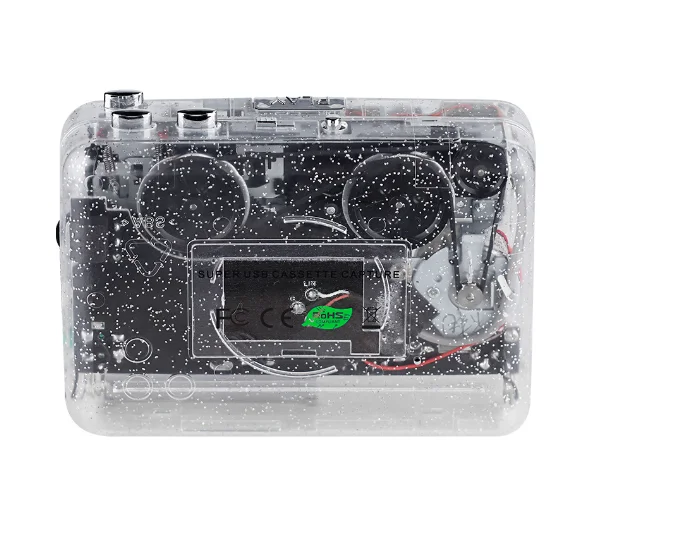
cassette to MP3 cassette to MP3 type c interface Walkman Classic fully transparent case
- Category: >>>
- Supplier: Shenzhen HXH Global Technology Co. Ltd
Share on (1600829456252):
Product Overview
Description
Product Description
Specification
item | value |
Place of Origin | China |
Product size | 11.5*8.5*3 |
Support system | Windows XP,Win7,Win 8,Win10 |
Interface | USB2.0 standard |
Attention: This product cannot be placed outside or charged. USB Tape Signal Converter Tape Walkman Tape to MP3 Cassette Drive
Walkman Dual Channel USB tape converter/tape conversion to MP3/dual player tape editing software Nostalgia is always a beautiful
thing. When we made a tape recording and recorded a beautiful witness, the old tape couldn't bear to lose because the things
inside were our most precious. Now we can convert it into MP3 and store it in a computer or other digital device.
Specification parameters: -Interface: USB2.0 standard -Recording format: Wave, MP3 -Power supply: 2 * AA dry battery, or USB
interface power supply option -Power consumption: ≤ 400mw -Size: 112 * 80 * 31 mm -Weight: 148gFunction description: -Convert
old-fashioned cassette music to MP3 format songs -Plug and Play. -Equipped with professional audio conversion software. -There are
two power supply options: dry battery and USB power. -Portable design. -Can be used as a regular cassette player.
Device function: 1. Convert music or English listening from old tapes into MP3. Don't worry, I won't lose it again (Directly
transmitted into the computer using a data cable, there will be no environmental noise, and it is as good as the original sound on
a magnetic tape.) 2. It can also be used to listen to tapes, but headphones should be worn (because there is no speaker, but there
is a high-quality earphone as standard) Old tapes have always been reluctant to throw away, but do you want to throw them into
outdated Walkmans? Blessed are the friends who have this idea now! The tape converter is born! Convert old magnetic tapes into MP3
format, output them to a computer, play them on a computer or IPOD, or create a disc for storage. Support systems: Windows XP,
Win7, Win 8, Win10 Including audio editing software Accessories include: 1x tape drive 1x instruction manual 1x USB data cable 1x
earphones 1x CD (including audio editing software and operating instructions) Software installation and usage instructions: The
audio conversion software is the "Audacity. exe" file on the CD, double-click it to run After installation is completed, start the
software and start recording: You can click the "Stop" button halfway to end the task. When recording, the wavy line shown in the
above image indicates successful recording. After recording, it supports exporting three audio formats: WAV, MP3, and Ogg Vorbis;
Note: He supports multiple languages. Some installations are in English and some are in Chinese, which are based on the system.
The automatic installation of English versions is in English, while the automatic installation of Chinese versions is in Chinese.
Edit - Parameter Setting - Interface, the following picture box appears, select language During the collection process, some
cannot hear sound because the parameter settings were not properly selected. Edit - Parameter settings, and choose according to
your situation. Small door: After installing the software, the software usually opens itself and closes first; Connect the product
to the computer using a USB cable, and then open the software. The parameter settings should be as shown in the following figure.
Select 'USB Audio Device' for both devices.
Walkman Dual Channel USB tape converter/tape conversion to MP3/dual player tape editing software Nostalgia is always a beautiful
thing. When we made a tape recording and recorded a beautiful witness, the old tape couldn't bear to lose because the things
inside were our most precious. Now we can convert it into MP3 and store it in a computer or other digital device.
Specification parameters: -Interface: USB2.0 standard -Recording format: Wave, MP3 -Power supply: 2 * AA dry battery, or USB
interface power supply option -Power consumption: ≤ 400mw -Size: 112 * 80 * 31 mm -Weight: 148gFunction description: -Convert
old-fashioned cassette music to MP3 format songs -Plug and Play. -Equipped with professional audio conversion software. -There are
two power supply options: dry battery and USB power. -Portable design. -Can be used as a regular cassette player.
Device function: 1. Convert music or English listening from old tapes into MP3. Don't worry, I won't lose it again (Directly
transmitted into the computer using a data cable, there will be no environmental noise, and it is as good as the original sound on
a magnetic tape.) 2. It can also be used to listen to tapes, but headphones should be worn (because there is no speaker, but there
is a high-quality earphone as standard) Old tapes have always been reluctant to throw away, but do you want to throw them into
outdated Walkmans? Blessed are the friends who have this idea now! The tape converter is born! Convert old magnetic tapes into MP3
format, output them to a computer, play them on a computer or IPOD, or create a disc for storage. Support systems: Windows XP,
Win7, Win 8, Win10 Including audio editing software Accessories include: 1x tape drive 1x instruction manual 1x USB data cable 1x
earphones 1x CD (including audio editing software and operating instructions) Software installation and usage instructions: The
audio conversion software is the "Audacity. exe" file on the CD, double-click it to run After installation is completed, start the
software and start recording: You can click the "Stop" button halfway to end the task. When recording, the wavy line shown in the
above image indicates successful recording. After recording, it supports exporting three audio formats: WAV, MP3, and Ogg Vorbis;
Note: He supports multiple languages. Some installations are in English and some are in Chinese, which are based on the system.
The automatic installation of English versions is in English, while the automatic installation of Chinese versions is in Chinese.
Edit - Parameter Setting - Interface, the following picture box appears, select language During the collection process, some
cannot hear sound because the parameter settings were not properly selected. Edit - Parameter settings, and choose according to
your situation. Small door: After installing the software, the software usually opens itself and closes first; Connect the product
to the computer using a USB cable, and then open the software. The parameter settings should be as shown in the following figure.
Select 'USB Audio Device' for both devices.
FAQ
1. who are we?
We are based in Guangdong, China, start from 2019,sell to Africa(40.00%),South Asia(30.00%),North America(20.00%),South America(10.00%). There are total about 5-10 people in our office.
2. how can we guarantee quality?
Always a pre-production sample before mass production;
Always final Inspection before shipment;
3.what can you buy from us?
TV accessory,computer accessory,3C produce,cable
4. why should you buy from us not from other suppliers?
We've handled various tasks involving various techniques, and most of them are customized, yet I keep learning everyday. For any task involving hardware & Electronics, I'd be more than willing to discuss and offer a solution/quote for you. Also I'm willing
5. what services can we provide?
Accepted Delivery Terms: FOB,CIF,EXW,DDP,DDU;
Accepted Payment Currency:USD;
Accepted Payment Type: null;
Language Spoken:null
We are based in Guangdong, China, start from 2019,sell to Africa(40.00%),South Asia(30.00%),North America(20.00%),South America(10.00%). There are total about 5-10 people in our office.
2. how can we guarantee quality?
Always a pre-production sample before mass production;
Always final Inspection before shipment;
3.what can you buy from us?
TV accessory,computer accessory,3C produce,cable
4. why should you buy from us not from other suppliers?
We've handled various tasks involving various techniques, and most of them are customized, yet I keep learning everyday. For any task involving hardware & Electronics, I'd be more than willing to discuss and offer a solution/quote for you. Also I'm willing
5. what services can we provide?
Accepted Delivery Terms: FOB,CIF,EXW,DDP,DDU;
Accepted Payment Currency:USD;
Accepted Payment Type: null;
Language Spoken:null


We Recommend

New Arrivals
New products from manufacturers at wholesale prices