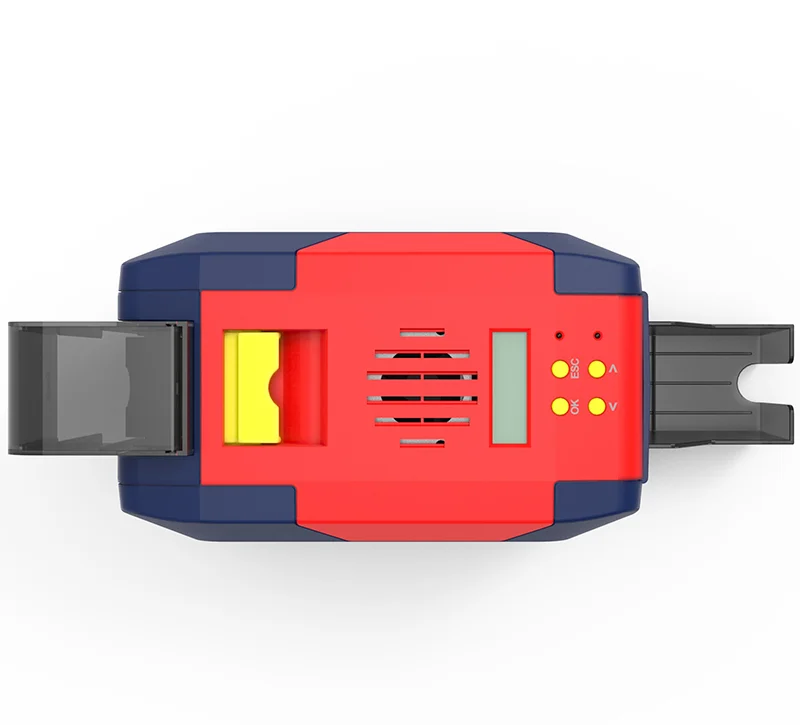
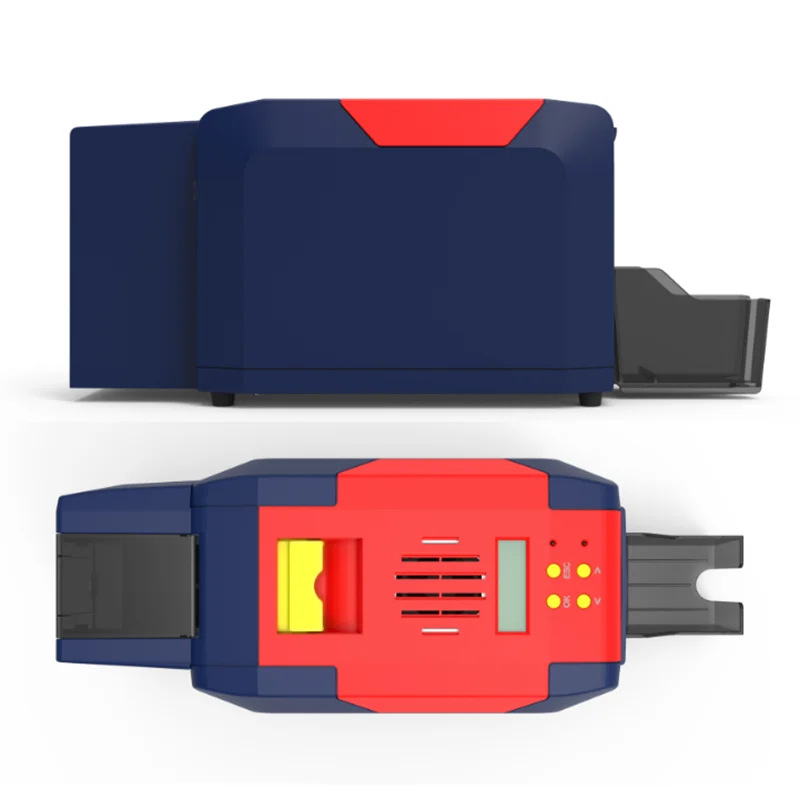
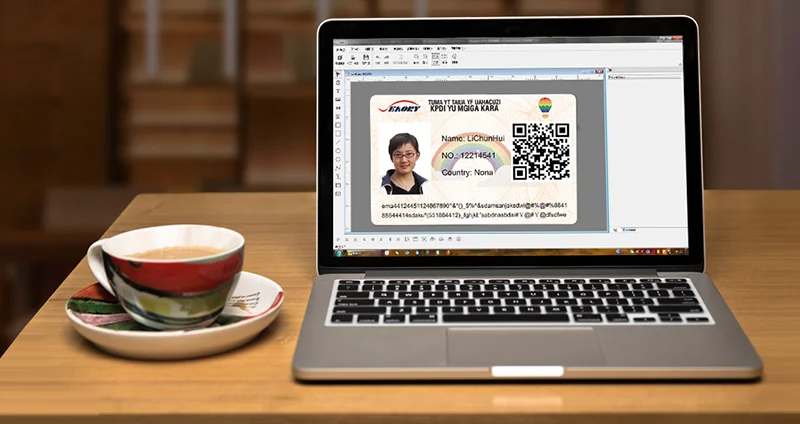
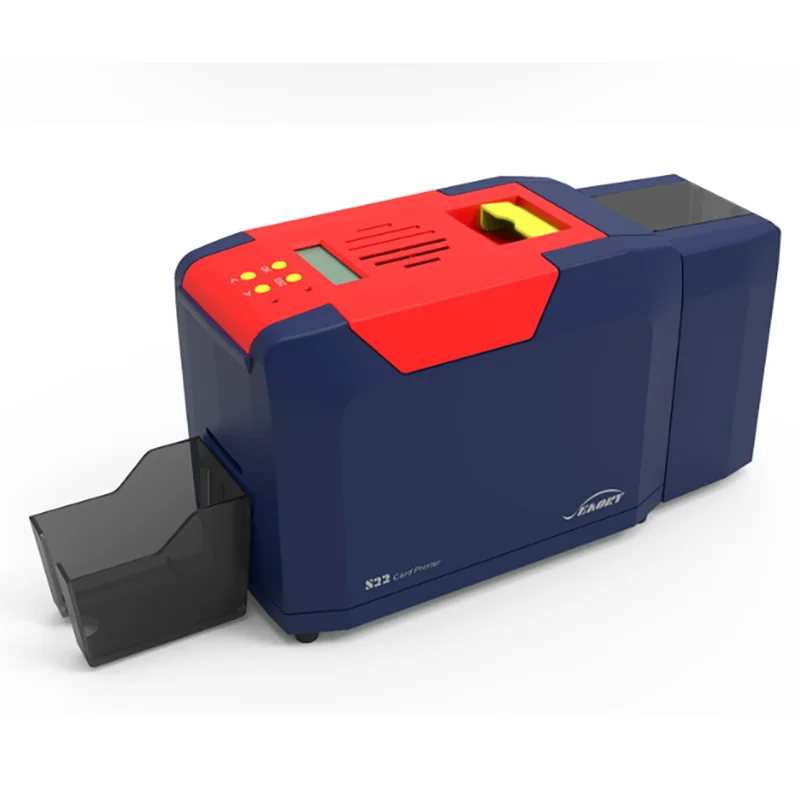
SR30 dual Interfaces Chip Card encoding module for Seaory Desktop PVC Card printer
- Category: >>>
- Supplier: Shenzhen Mingwah Aohan Internet Of Thing Technology Corporation Ltd.
Share on (1600837600532):
Product Overview
Description
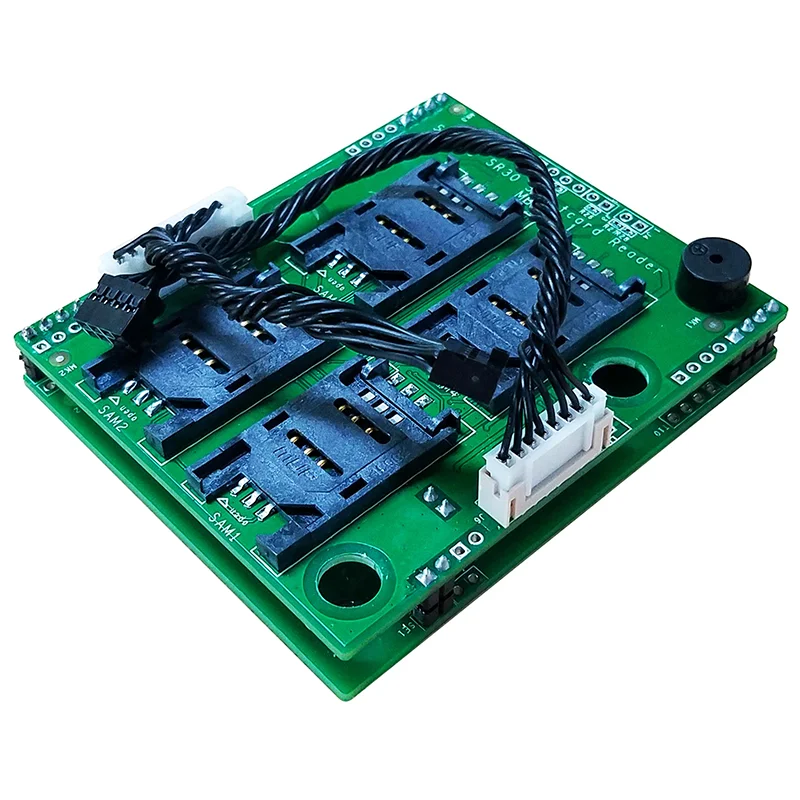
Seaory SR30 dual Interfaces Chip Card encoding module
Support contact and contactless chip card data read and write.
Contains 4 SAM card slots which comply with the size of GSM 11.11 SIM card slot.
Support ISO7816 contact chip card, Support ISO14443 TYPE A/B contactless CPU card
Support PC/SC Smart card interface
Support standard built-in RS232 and USB interface(HID driver free technology), Communication speed up to 115200bps
Provide universal interface function library, can support a variety of operating systems and language development platform, support online upgrade
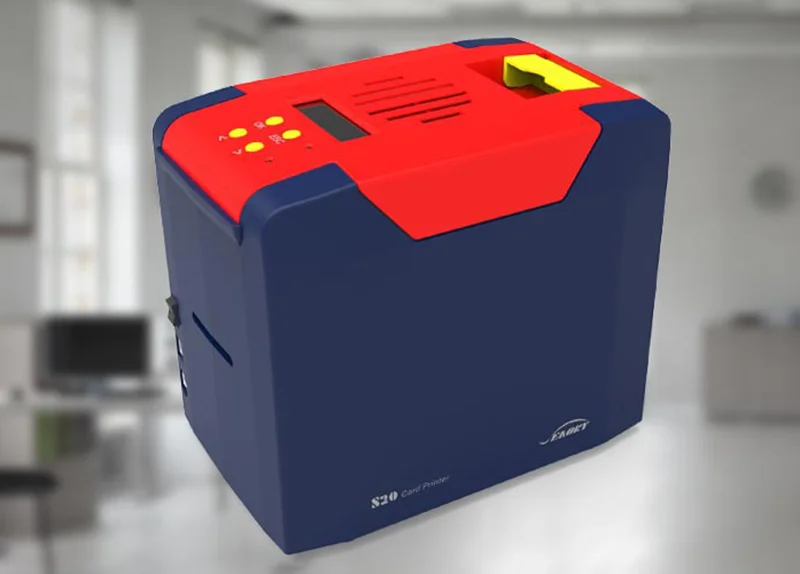
Suitable for Seaory S series Card printers
Contains 4 SAM card slots which comply with the size of GSM 11.11 SIM card slot.
Support ISO7816 contact chip card, Support ISO14443 TYPE A/B contactless CPU card
Support PC/SC Smart card interface
Support standard built-in RS232 and USB interface(HID driver free technology), Communication speed up to 115200bps
Provide universal interface function library, can support a variety of operating systems and language development platform, support online upgrade
Suitable for Seaory S series Card printers

Product overview
The SR30 is a powerful two-in-one encoder for the Seaory S series card printers. It supports both contact and contactless chip card encoding . It supports both common Memory and CPU cards as well as two PSAM cards.
Support USB port and RS232 serial port communication, achieve card printer and related equipment connection. USB adopt no drive technology, convenient installation and usage.
Support USB port and RS232 serial port communication, achieve card printer and related equipment connection. USB adopt no drive technology, convenient installation and usage.
Main features
⚫ Contact chip card & contactless chip card & Dual Interfaces Chip Card Encoder
⚫ Support standard built-in RS232 and USB interface(HID driver free technology)
⚫ Support ISO7816 contact chip card, Support ISO14443 TYPE A/B contactless CPU card
⚫ Support PC/SC Smart card interface
⚫ Support standard built-in RS232 and USB interface(HID driver free technology)
⚫ Support ISO7816 contact chip card, Support ISO14443 TYPE A/B contactless CPU card
⚫ Support PC/SC Smart card interface
Specification
Model name | Seaory SR30 dual Interfaces Chip Card encoding module |
Part Number | BXM.S2205.001 |
Contact chip card | Support ISO7816 contact IC card. Support T=0, T=1 CPU card, support all commonly used memory card, logical encryption card |
SAM card holders | 4 pcs compliance with GSM 11.11 SIM card size SAM card holders |
Communieation speed | 9600-115200bps |
Communication method | Support standard built-in RS232 and USB interface(HID driver free technology) |
Operating system | Windows,Android ,Linux |
Voltage | DC3.6~6.5V |
Working environment | Temperature:-10℃~50℃; Humidity:5%~93%( Non - Condensing) |
Other features | Provide API interface function library, can support a variety of operating systems and language development platform |
Packing & Delivery

FAQ
Fault codes | Fault name | Reason | Solution |
CODE:43 | Ribbon missing | Ribbon uninstalled | Install ribbon according to operating manual |
CODE:46 | Ribbon out | Replace a new ribbon | Replace a new ribbon according to operating manual |
CODE:5F | Card out | Place some cards | Place some cards according to operating manual |
CODE:21 | Printer cover is open | Top cover of the printer is not closed | Close the printer cover |
CODE:22 | Reject box open | Reject box is open | Close reject box |
CODE:23 | Reject box full | Reject box is full | Take out defective cards |
CODE:51 | Card feed error | Thickness of card feeding entrance setting is wrong | Adjust the feed card thickness according to the operation manual |
CODE:11 | Card jam | Unusual card jam | Clean the card moving roller regularly according the to operation manual |
CODE:44 | Ribbon unsupport | Ribbon chip unsupport | Check the ribbon details by the driver or LCM,and contact the local distributor |
Q1:When card printer no action
* Verify that the card printer driver is installed correctly
* Check power and USB cable connections
* Check ribbons and cards
* Print test picture
* Check power and USB cable connections
* Check ribbons and cards
* Print test picture
Q2:When print out the blank card
* Check ribbons and cards
* Please reset the card printer’s parameters by driver (Print option - Tool - Position Calibrate - Reset to factory default ) Or
adjust the L,T and S value
* Try to print again after adjust
* Check whether the printing card is CR-80 standard
* Please reset the card printer’s parameters by driver (Print option - Tool - Position Calibrate - Reset to factory default ) Or
adjust the L,T and S value
* Try to print again after adjust
* Check whether the printing card is CR-80 standard
Q3:When partial or error printing
* Check the card printer’s setting
* Check the cable and ribbon
* Make sure the cleaning roller is clean
* Check the card is clean or not
* Check the print head
* Check the cable and ribbon
* Make sure the cleaning roller is clean
* Check the card is clean or not
* Check the print head
Q4:When the printed card has a defect
* The card surface is not clean
* Please clean the card printer by cleaning card
* Print head is not clean or damaged, need to wipe cleaning or replace
* Check whether the cleaning roller need to replace
* Please clean the card printer by cleaning card
* Print head is not clean or damaged, need to wipe cleaning or replace
* Check whether the cleaning roller need to replace
Q5:When the printed card appears with a white line
* Check whether the ribbon is proper installed
* Check whether the print head is not clean or damaged
* Check whether the print head is not clean or damaged
Q6:When the printed card appears white vertical or color lines
* Print head maybe was damaged
Q7:When the printed card appears blurry image
* Check whether the ribbon is proper installed
* Check whether the cleaning roller or print head is not clean
* Check whether the printing card is CR-80 standard
* Check whether the cleaning roller or print head is not clean
* Check whether the printing card is CR-80 standard
We Recommend
New Arrivals
New products from manufacturers at wholesale prices