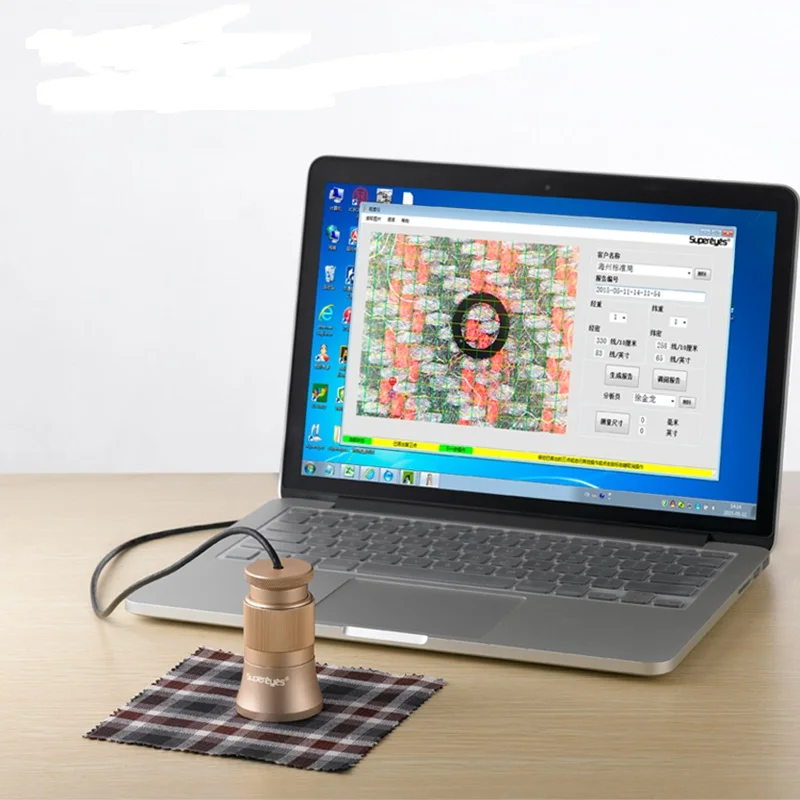
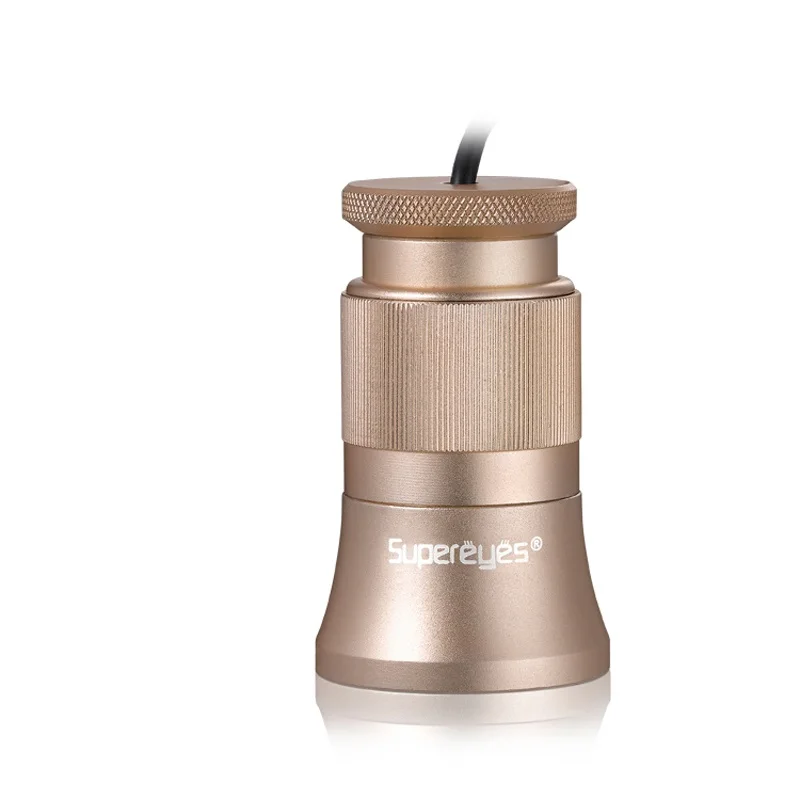
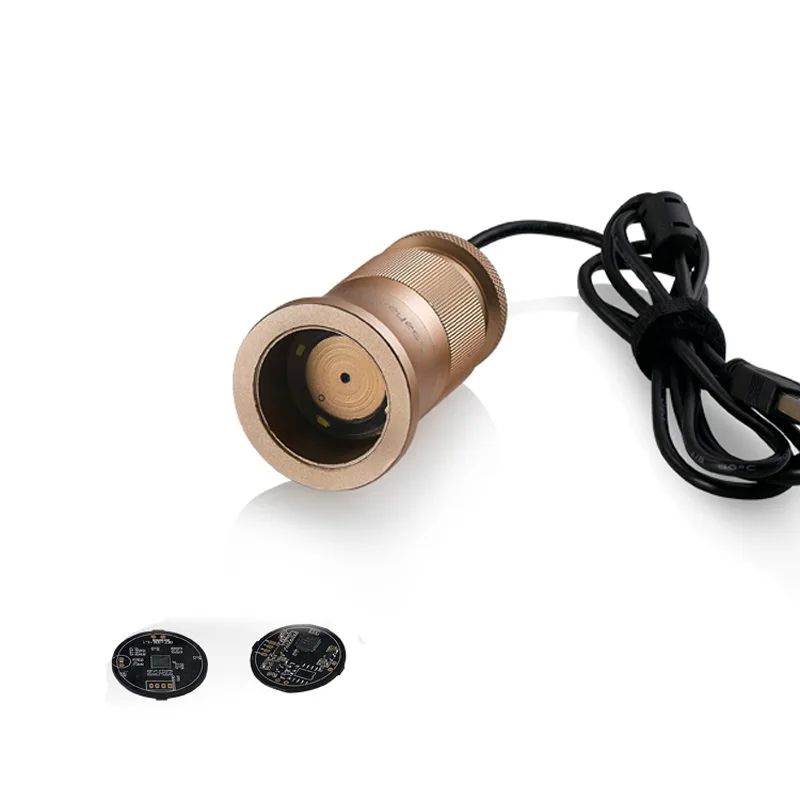
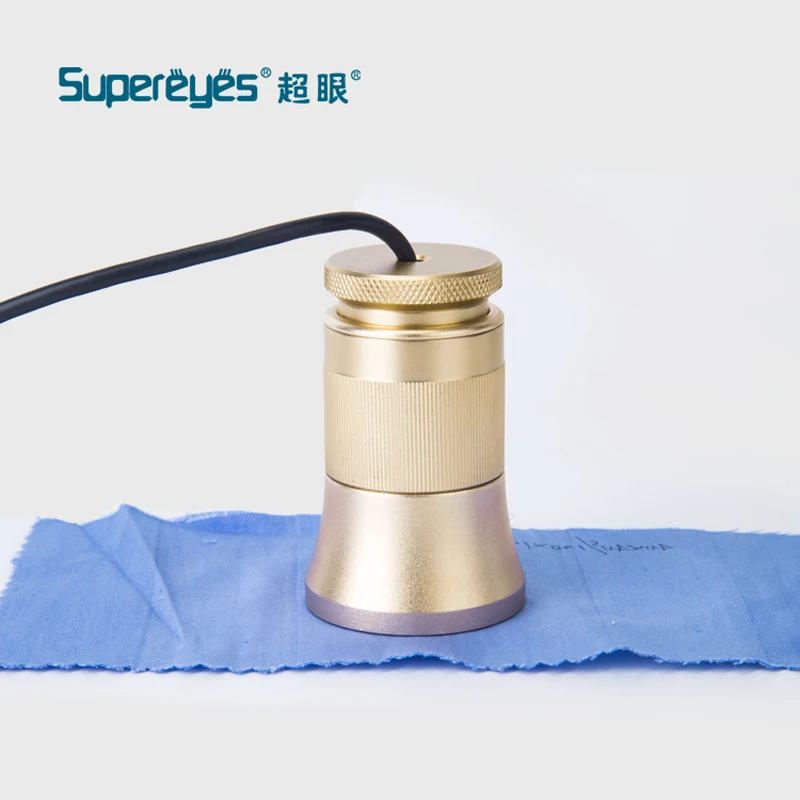
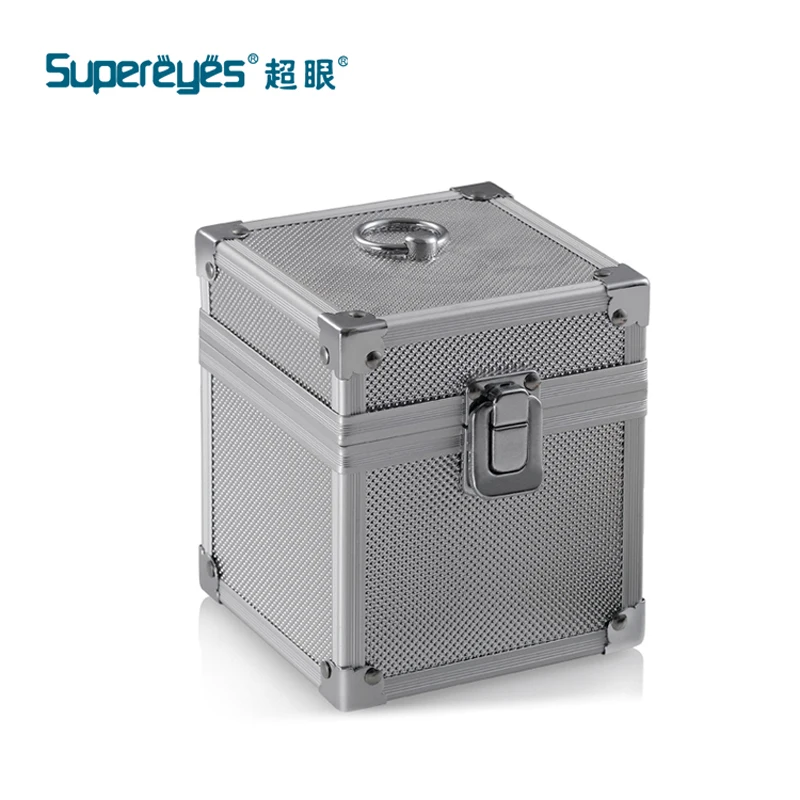
High efficient Supereyes C003 200X automatic textile fabric linen tester thread yarn analysis counter with zooming
- Category: >>>
- Supplier: Shenzhen Supereyes Technology Co. Ltd.
Share on (60334784448):
Product Overview
Description
High efficient Supereyes C003 200X automatic textile fabric linen tester thread yarn analysis counter with zooming
Product Description
Unique features:
- Automatic density analysis
- 200X digital magnification
- Imported electronic components
- Elegant apperence design
Field of application:
Textile, Clothing Industry,Consumer electronic, Industry inspection, Instrument, Health Care, Laboratory, Vehicle maintenance and repair ,Auto industry,Sewer and Pipe inspection,Security.
Software Application on Windows :
Supereyes software provides snapshot, video recording, measurement, and etc.


Product parameters:
| Model | C003 |
| Focus | Manual Focus |
| Focal Distance | 3 mm — infinity, customized |
| Magnification | 50 — 200X (continuous zoom) |
| Sensor | 2 MP |
| Pixels | 1600*1200, 640 * 480, 320*240 |
| Video Resolution | Max 640*480 |
| Photo Format | JPEG, BMP |
| Video Format | WMV, DZC |
| System | Windows XP SP2 and above, Mac OS X 10.5 and above, Linux |
| SnapShot | Software control (Windows only) |
| Date saving | Yes |
| Mac OSX | Photo Booth or FaceTime |
| Light Source | LED lights |
| Port | USB 2.0 |
| Frame Speed | Max 30 frames/second |
| Material | Metal |
| Product Size | φ44 mm * 46mm |
| Gross Weight | 600 g |
| N.W. | 200 g |
| Warranty | 1 year |
| OEM/ODM | Acceptable |
| Small quantity order | Acceptable |
Application:
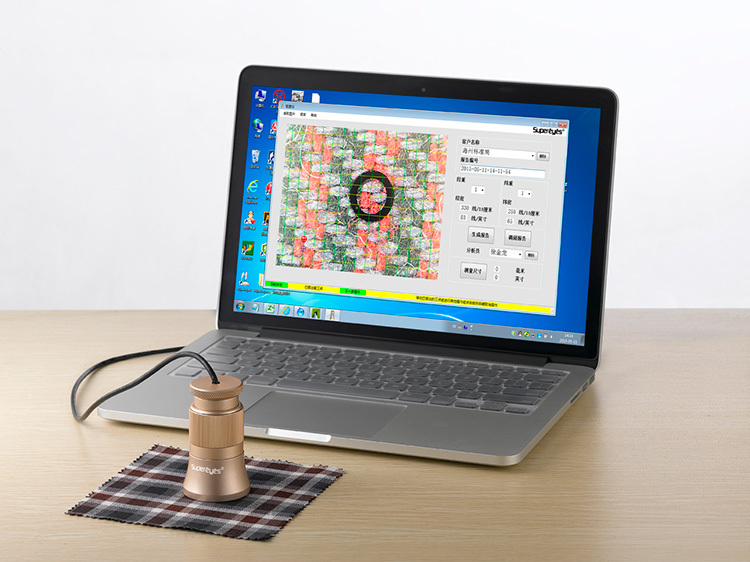
- Plug C003 to computer, put it onto the object and make sure SUPEREYES logo face to operator.
- Double click to run the software
- Rotate the central knob to adjust suitable magnification
- Rotate focus knob to make image clear; to make the density inspection precise and easy, please keep the textile texture horizontal and vertical
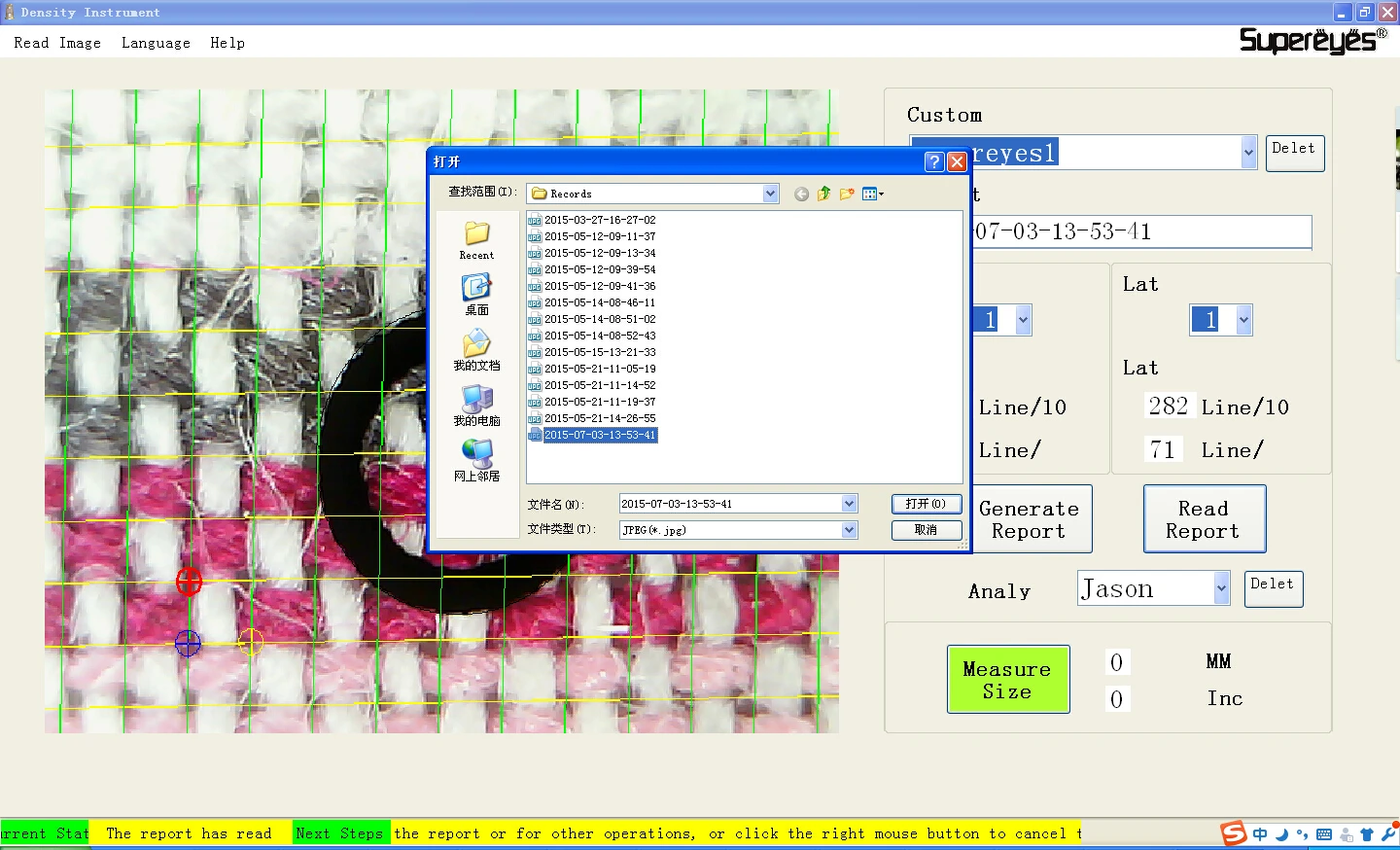
- Set 3 sampling points by click left button; To be convenient to adjust, please choose intersections of warp and weft and set the second sampling point in the corner. If sampling points is not ideal, please click it by left button to activate it(overstriking), then use Mouse for rough adjustment or use direction key in the keyboard for precise adjustment until computer density lines match the warp and weft of textile perfectly. Current data shows the warp density and weft density on the right part of the software.
- Read picture: Reading picture is only for double analysis for existing pictures, which are saved during report generation.Please follow this step during reading picture: select picture->open; It may cause unpredictable problems if double click the selected pictures.
- Customer name and analyst. Select: pull down list and click left button; Add new: input in customer name column and save by report generation. Delete: pull down list, select and delete by clicking right button
- Report number generates by system chronologically
- Measure Click in the lower right corner; after the symbol changes to, set 2 arbitrary points to measure the length. Click again after measurement, software will return to density analysis condition.
Please restart the software if problem occurs during using.
Product shows

See more products

Company Information
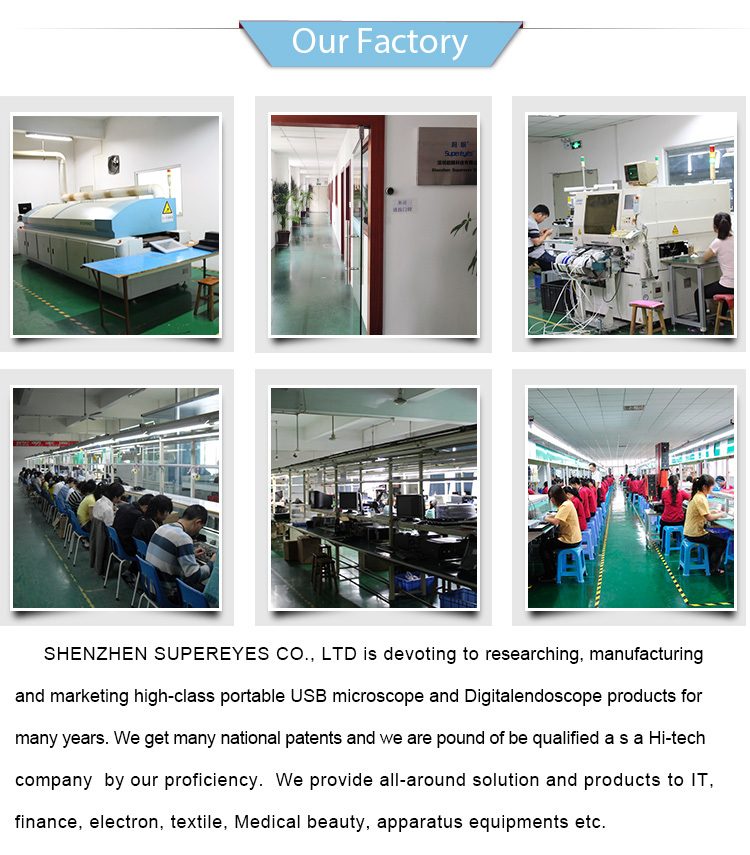

Packaging & Shipping

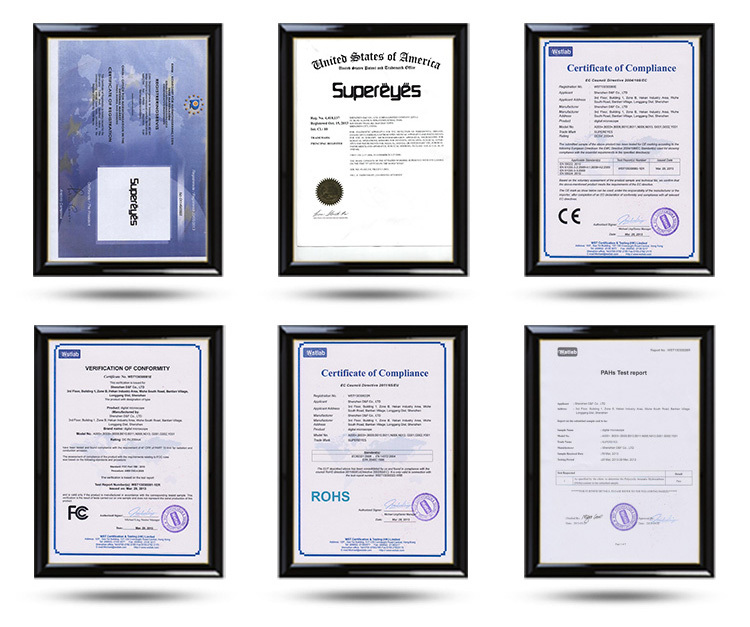
Certifications

We Recommend
New Arrivals
New products from manufacturers at wholesale prices