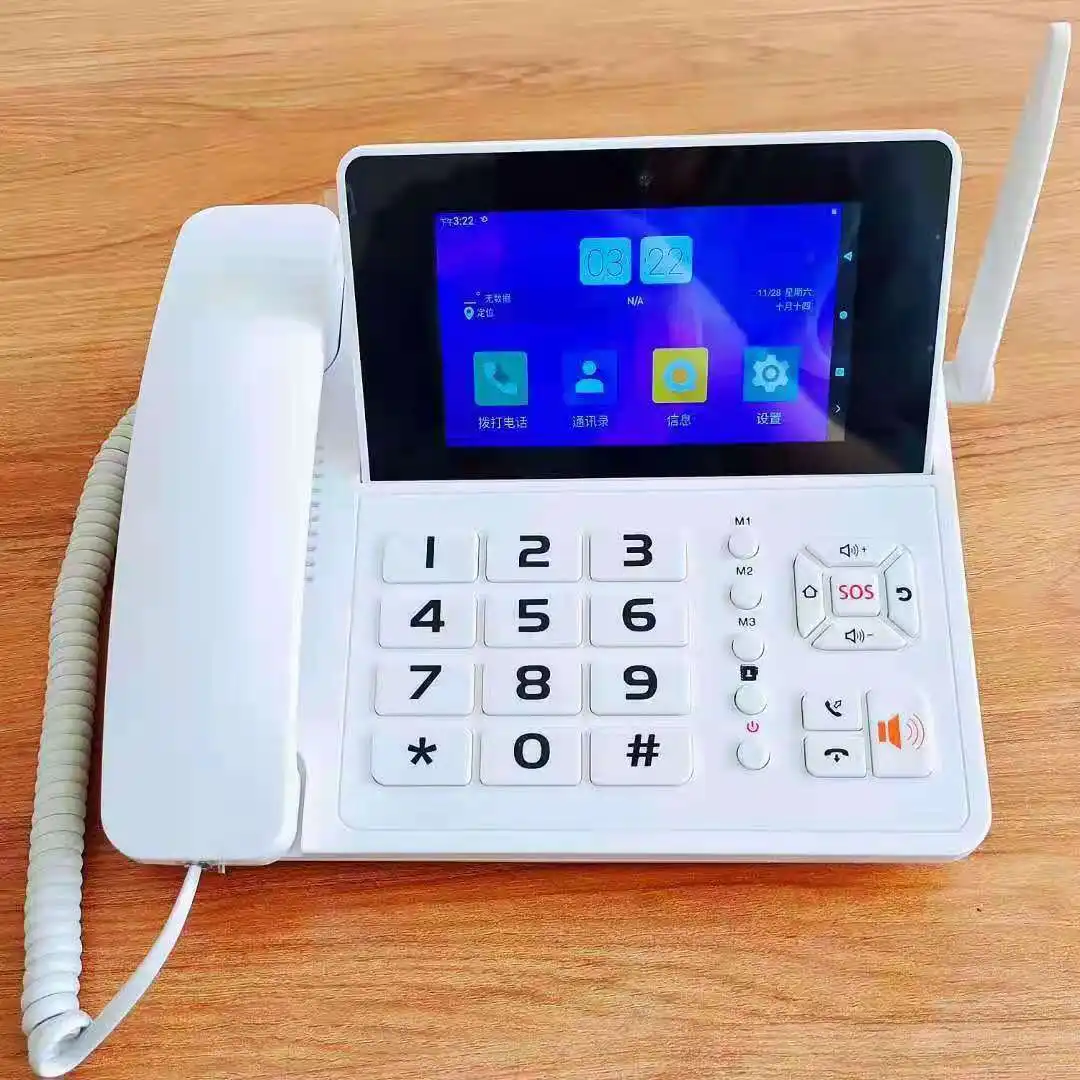
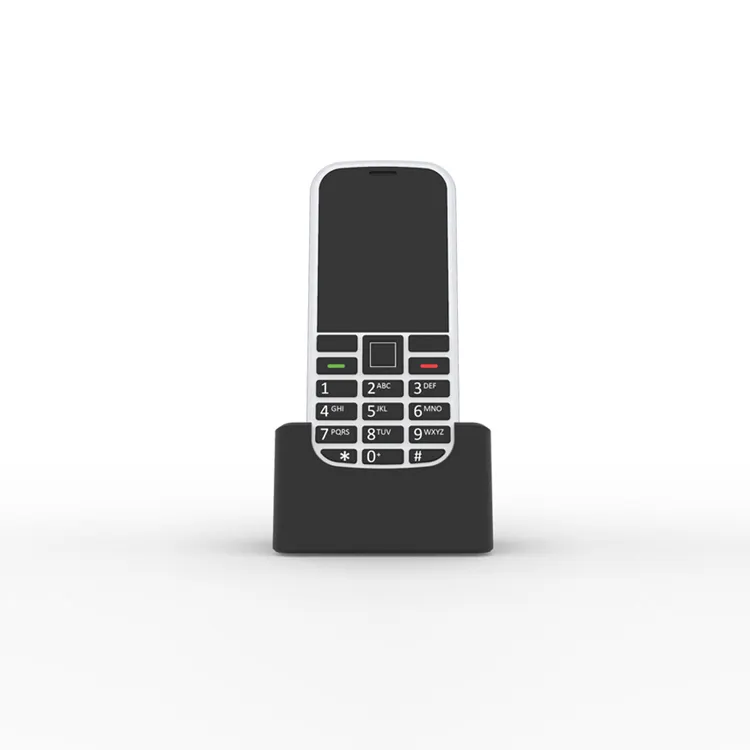
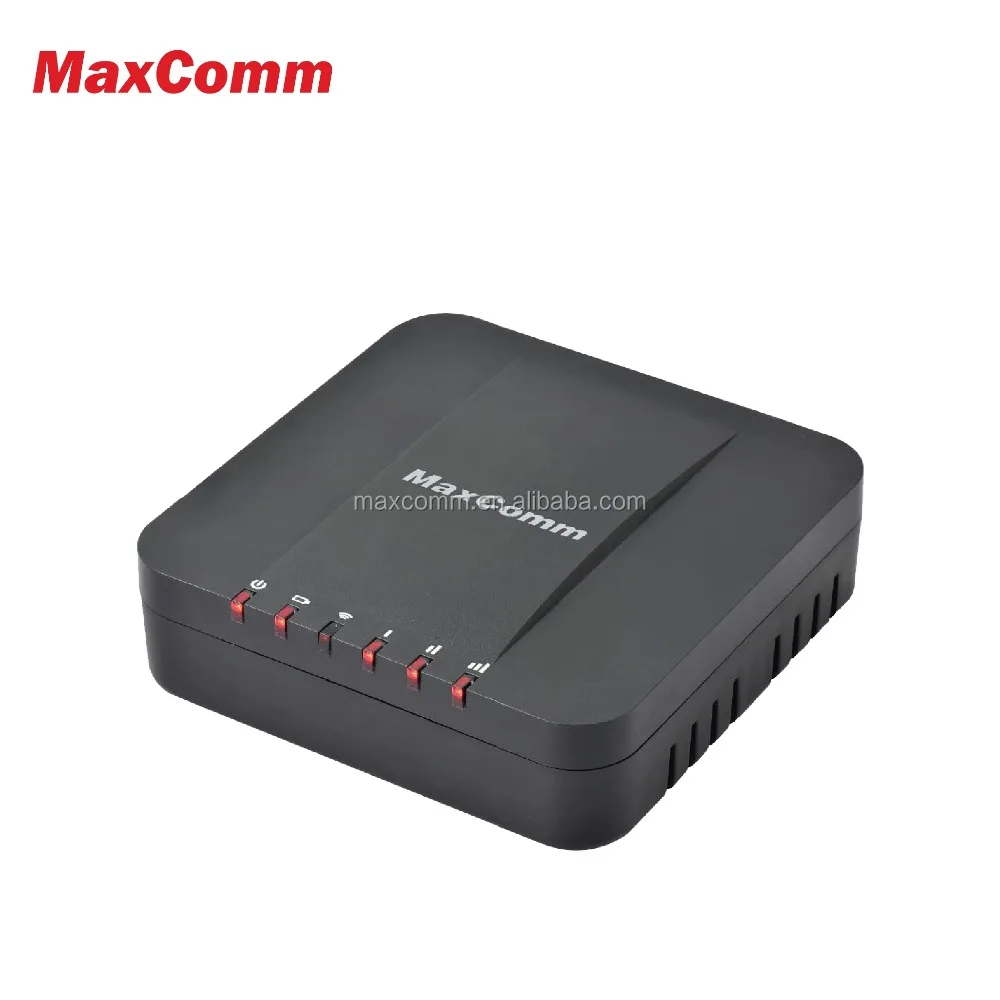
1 Sim Slot CDMA Cordless Phone 800MHZ (Stock)
US $12.30-$13.00
Share on (60725623200):
| Main Features | |||
| Convert phone call from fixed line to 4G LTE Network via VoLTE and optional 3G Network | |||
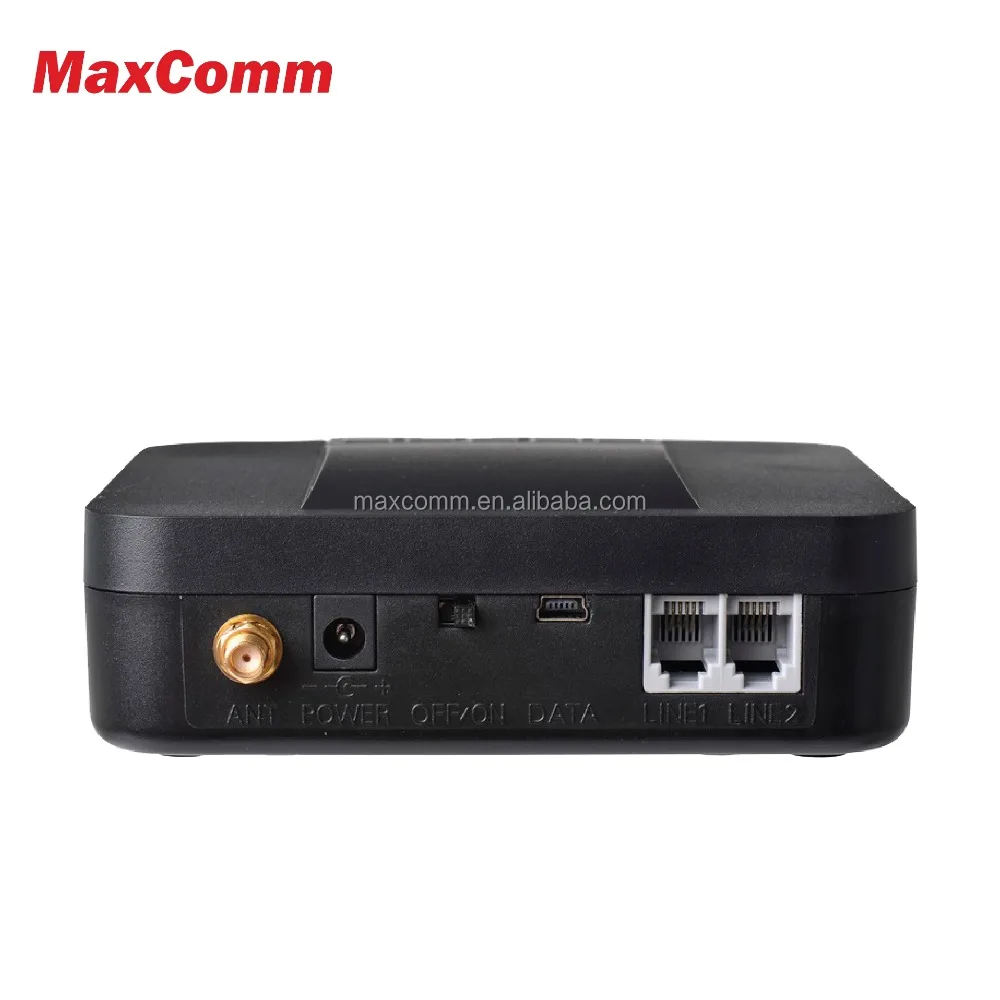
| 1x RJ-11 phone ports for connecting phone, PABX | |||
| 1x RJ-11 phone jack for connecting PSTN Fixed Line | |||
| External Antenna connector – SMA Type | |||
| back-up LI battery (INTERNAL) | |||
| Volume adjustment and echo cancel | |||
| Support caller ID: DTMF Mode; optional FSK Caller ID | |||
| Reverse Polarity or 12/16KHz metering signal | |||
| USB port to connect PC for 4G Data network | |||
| Support SIM Lock and Network Lock | |||
| Technical specifications | |||
| 4G/3G parameters | |||
| Support 4G LTE 1800+2600MHz, etc.; 3G HSDPA/UMTS 2100/900MHz | |||
| 4G LTE Cat.4 Downlink : 150Mbps | |||
| Power supply | |||
| AC input voltage 100V~240V AC | |||
| Power adaptor output DC 12V~9V/1.5A~1A | |||
| Battery 1000mah Li-thium battery(optional) | |||
| Maximum charging current 600MA | |||
| DC input voltage range 9V~12V DC | |||
| Maximum working current 700ma(DC7.5V, Average current, excluding charger current) | |||
| Application environment | |||
| Operating temperature: 0~+50゜C | |||
| Relative humidity: 10%~90% | |||
| Device dimension : 12x12x3.5cm | |||
| Package:20pcs/Carton | |||
| Inside box Dimension : 32×18.5×5.5(cm) G.W.: 0.7kgs | |||
| External carton Dimension : 40×36×32(cm) :14kgs (20sets in one carton) | |||


| Package Dimensions (According to package size) | 48*39*24 (cm) | ||
| Gross Weight | 10 KG/ Unit Type | ||
| Packaging Type | white box (optional color gift box with additional cost), 10sets in one carton. Export standard Carton package, optional packed with pallets. | ||


Frequently Asked Questions :
If any problems are encountered while using the phone, please refer to below items. If the problems still exit, please contact the Distributor or the Network Operator.
Q. “Enter PIN code" appears on the screen.
A. Enter valid PIN code of your SIM card. Please contact your Network Provider immediately if you do not know the code.
Q. “Enter PUK code" appears on the screen.
A. Your SIM card will be locked if you enter wrong PIN code for three times. To unlock your SIM card, you have to enter PUK code. Please contact your Network Provider immediately if you 77 do not know the code.
Q. “Insert SIM card" appears on the screen.
A. Make sure SIM card is correctly installed. Check if SIM card works properly. It may be defective or faulty. Please contact you Network Provider.
Q. “Not in service area. Network failure.” is displayed.
A. Check signal indicator. If there is no signal, you may be in the basement or network blind area in a building. Please move to other locations to receive signal. Or potentially you are not in coverage area. If so, please contact your Network Provider for assistance.
Q. Poor sound quality, echo or noise makes communication difficult.
A. Hang-up your phone and dial again. The Network may connect the phone to a line with better communication quality.
Q. Standby time declines.
A. Signal at your location is weak so that the phone has to search signal for a long time. When you don’t want to answer any calls, please power off for a time being. It is also possible that the battery has been used for a long time and approaches its life-span. In this case, please replace the battery.
Q. Phone fails to boot. 78
A. Your battery is potentially not charged. Please charge your phone until the battery power is restored, then try to power on again.
Q. Cannot send short messages.
A. Please check the SMSC address if the correct number has been set. Perhaps the recipient contact number is invalid. 79
Q. Cannot charge. A. There are three possibilities: • Charger of your phone does not work properly. You can contact nearest service provider or dealer; • Ambient temperature is not appropriate. Please change charging environment; • Poor contact. Please check plug of your charger.
Q. Cannot add entries into phonebook
A. Phonebook is full. Please delete some useless entries.
Q. Cannot select some functions
A. The service is not available or the location network does not support this service. Please contact your operator for details.
Q. What is the purpose of the Com Port option when the device is connected via USB?
A. The Com Port is mainly used for Software Upgrades when new versions are released and debugging by the supplier.
Q. How to find the IMEI No. of the Phone?
A. You can enter the command “*#06*” to show the IMEI No. on display.
Q. How to find the firmware Version No. of the Phone?
A. You can enter the command “*#0000#” or “*983*833#” Then the Firmware version will show on the display.
Q. Who can I contact for technical support?
A. You can call Local Customer maintenance Center or send email
New products from manufacturers at wholesale prices