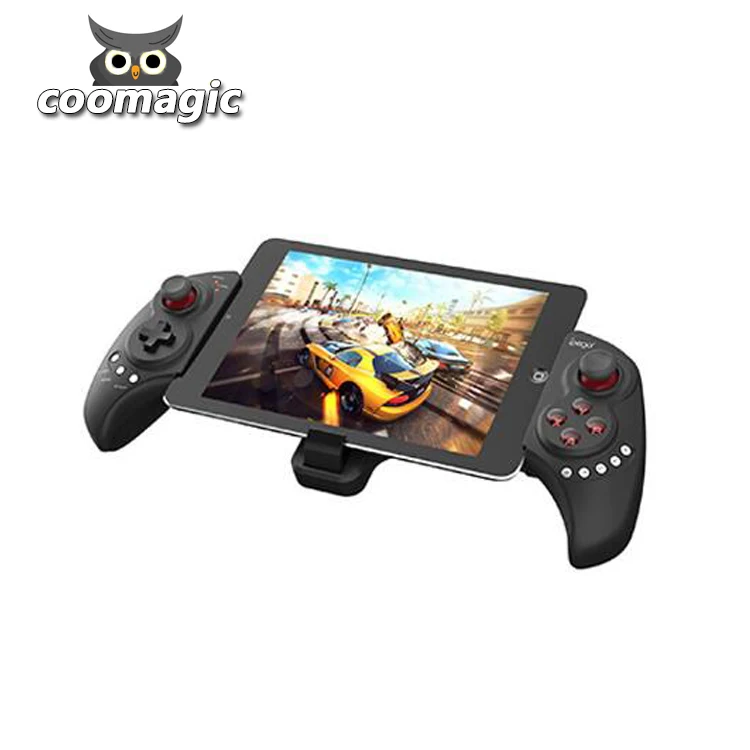
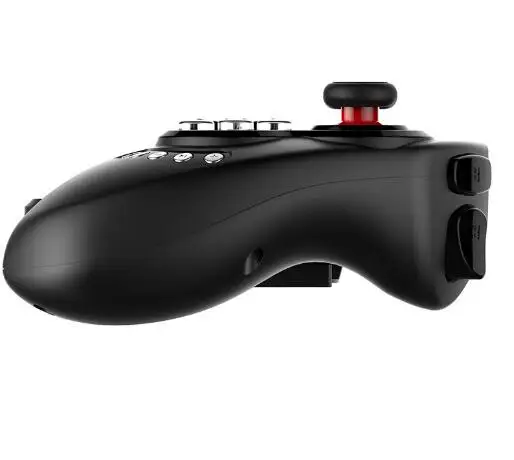
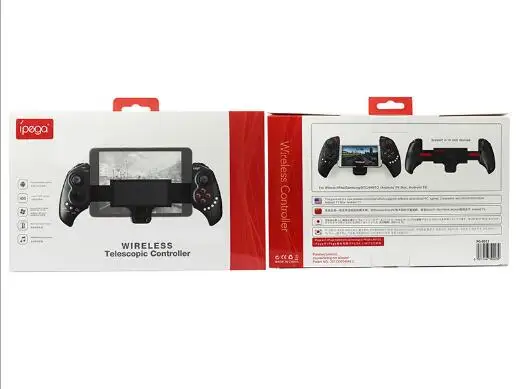
Retractable charging wireless wireless 3.0 Android / iOS tablet mobile gamepad
- Category: >>>
- Supplier: SZ Gteak Technology Co. Limited
Share on (62039726676):
Product Overview
Description
Product Description
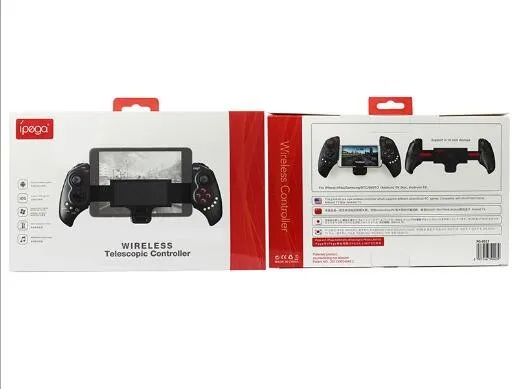
Wireless wireless Android / IOS / PC game controller
1. No need to load any driver, it can be used after pairing with mobile phone wireless
2. Built-in lithium battery 380mAh, 20H can be used after charging.
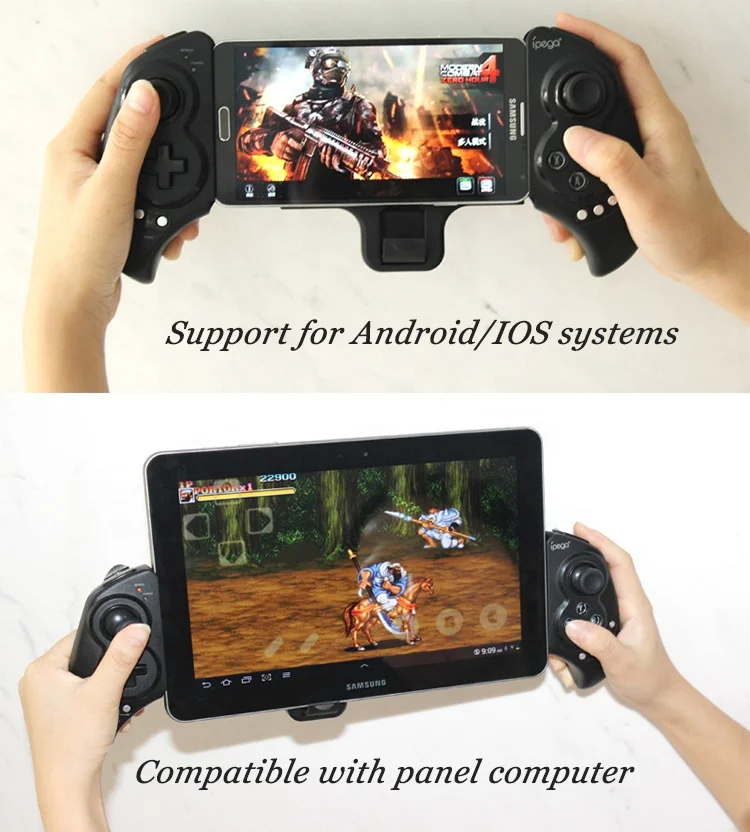
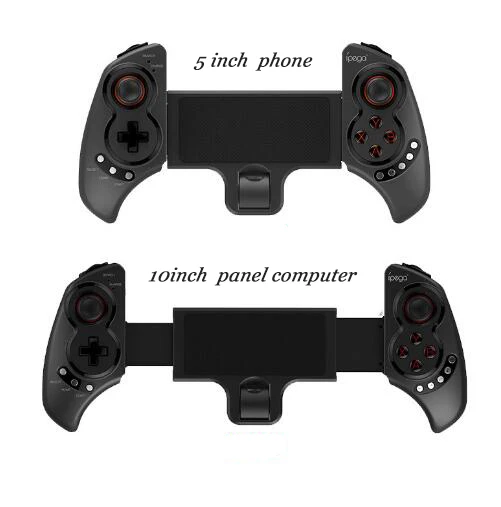
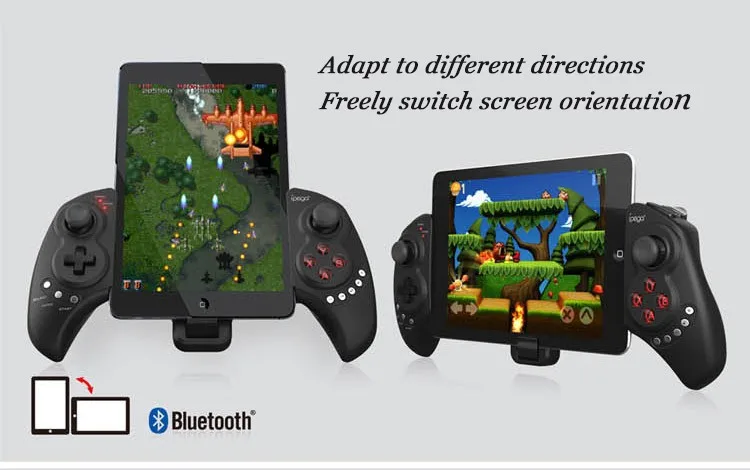
3. With telescopic stand, mobile phone or tablet (supporting 5-10 inch equipment),
4. With 5 volume function keys: "Volume+,-", "Previous song, Next song", "Play/Pause"
5. wireless3.0 wireless transmission function, can operate in the ultra-wide control distance range of 6-8 meters;
6. User-friendly software design, can enter the power-saving mode in the connectionless state;
7. Support android 3.2, ios 4.3 or above system;
8. Compatible with iPod/Phone/Pad and most Android tablet PCs;
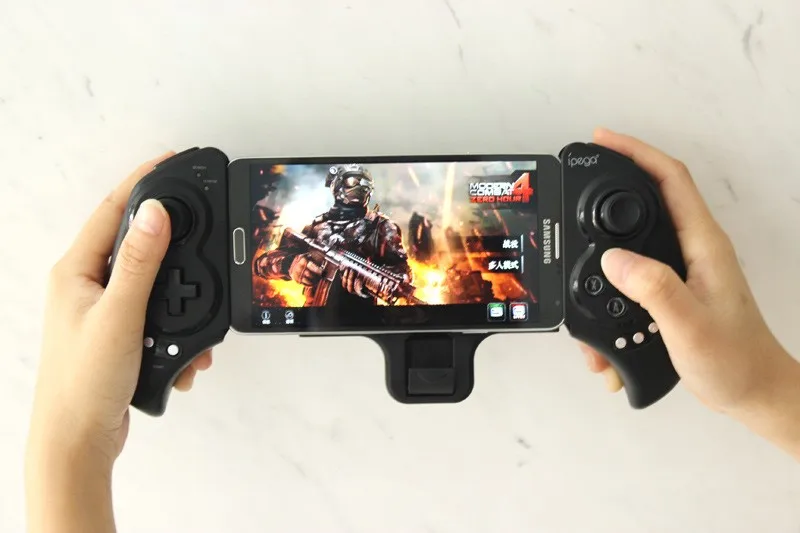
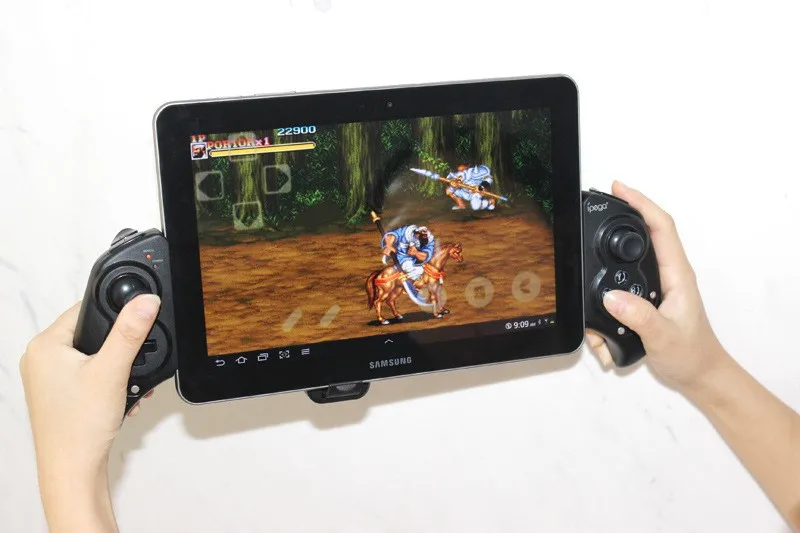
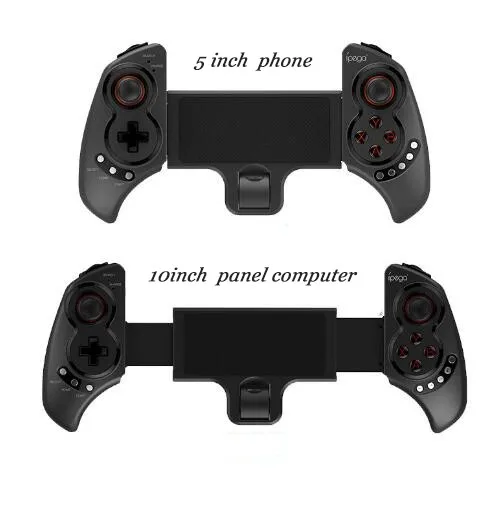
Stretching gamepad Mobile Android ios tablet pc wireless wireless
1. This product is suitable for PS3 game console/pc, wireless wireless connection,
2. With six-axis sensing and vibration function, it is the game direction when you play the game.
3. Built-in rechargeable lithium battery for long-lasting durability
4. Ergonomic design, more comfortable to use.
5.Customizable color.
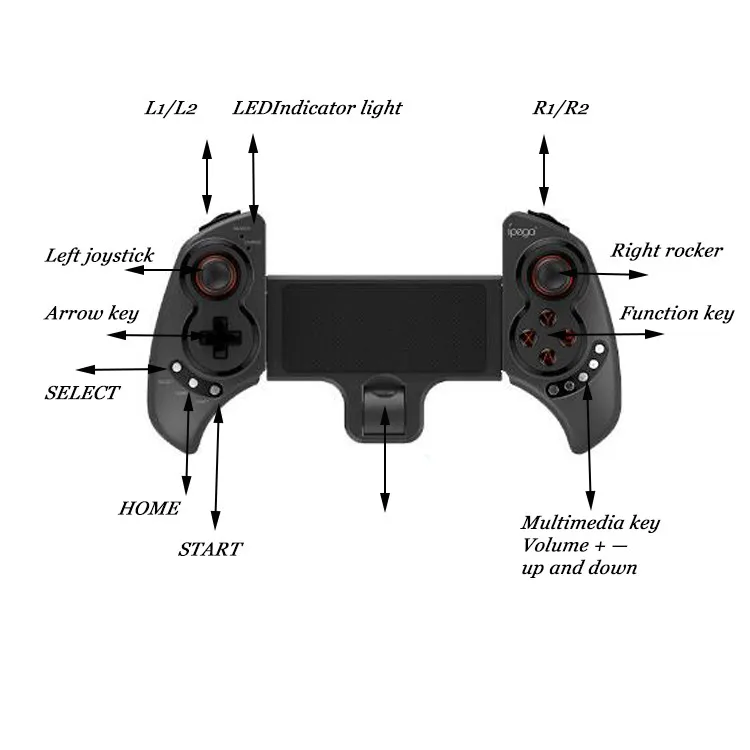
Instructions:
1. X.GamePad Mode: (Applicable to Android 3.2 or above, support Android games) When the handle is off, first press and hold the "X" button, then press the HOME button, the wireless LED flashes quickly, and the handle enters the pairing state. , open the mobile phone wireless search device "ipega Extending Game Controller" pairing, the LED indicator lights up after the pairing is successful.
2. A.Keyboard Mode: (Applicable to Android system, support all kinds of simulators) In the state of the controller off, first press and hold the "A" button, then press the HOME button, the wireless LED indicator flashes quickly, and the handle enters the pairing state. , open the mobile phone wireless search device "ipega Extending Game Controller" pairing, the LED indicator lights up after the pairing is successful.
3. B.iCade Mode: (for IOS system) When the handle is off, press and hold the "B" button, then press the HOME button, the wireless LED flashes quickly, the handle enters the pairing state, and the mobile phone wireless search device is turned on. The "ipega Extending Game Controller" is paired. After the pairing is successful, the LED indicator lights up.
4. Y.Y button has 2 modes: 1.SPP Mode (for games with virtual buttons); 2.ipega game desktop (see attachment for details)
5 .SPP Mode: (Applicable to Android system platform, need ROOT to use) When the handle is off, first press and hold the "Y" button, then press the HOME button, the LED indicator is fast.
Flash, the handle enters the pairing state. After the pairing is successful, the LED indicator will still flash, the handle is in the SPP working mode; the SPP mode needs the corresponding Android APP software to complete the relevant
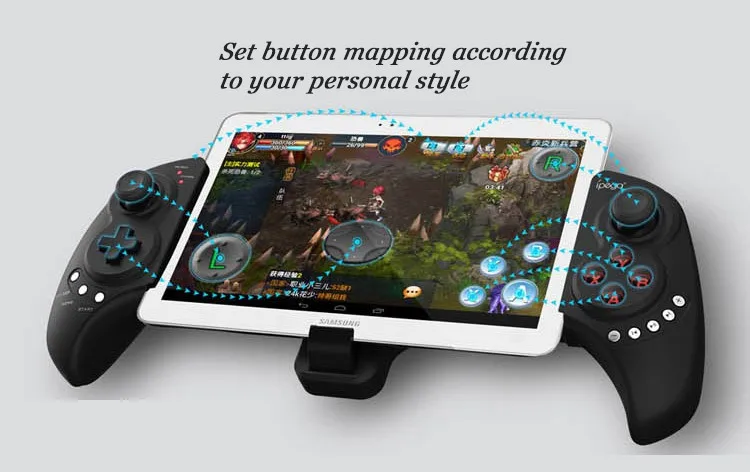
Button mapping function.
How to use SPP: Log in to the official forum: //www.aipaige.com or download the "GHTouch" APK file via QR code.
1. Go to Settings → Language and Input Method → Select Input Method "GHTouch IM" (Figure 1)
2. Open the application "GHTouch" → select the device "ipega Extending Game Controller" → check the "virtual screen button" → select the input method "GHTouch IM"
→ The device will automatically connect to the handle. After the connection is completed, the LED indicator will be on (Figure 2, 3).
3. After entering the game, press the volume on the device or the handle "Select" button to drag the button icon to the corresponding position on the screen (Note: double-click the icon to set the size)
Press the return on the device or press the handle "Select", the icon is hidden, complete the settings
About input method setting: When using this controller to play games, you need to input the input method of mobile phone or tablet to English input by default (in iOS system, be sure to switch input method first, then proceed
Pair, otherwise the handle will not work properly).
Charge the handle: Connect the handle to the 5V power supply for charging (such as the power adapter of the PC device or mobile phone). During the charging process, the charging indicator of the handle is orange and keeps the light on, after being fully charged.
LED is off;
Operation of the switch on and off: Press and hold the "HOME" button for about 3 seconds until the wireless LED is off, that is, the handle is turned off successfully; if the phone is not unpaired after the handle is turned off, just press it again.
"HOME" button, the wireless LED lights up slowly, which means the handle is turned on (default last boot mode), the handle will automatically connect with the phone after booting, if the connection fails, the handle will be
Shut down.
Connect PC: Open thewireless program of the PC device, and select any one of the above "X, A" modes to pair with the controller (PC devices without wirelessfunction need to use wirelessreceiver)
Note: To change the handle function mode, first close the handle and cancel the wireless pairing, then follow the step of the code to be replaced.
Packing & Delivery
Packing
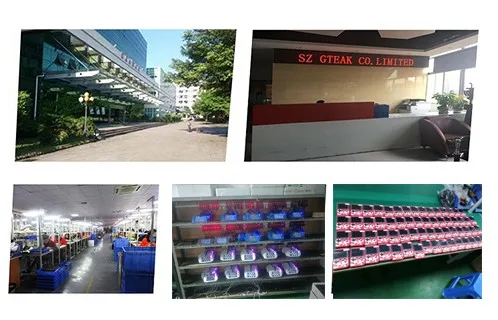
Our Company
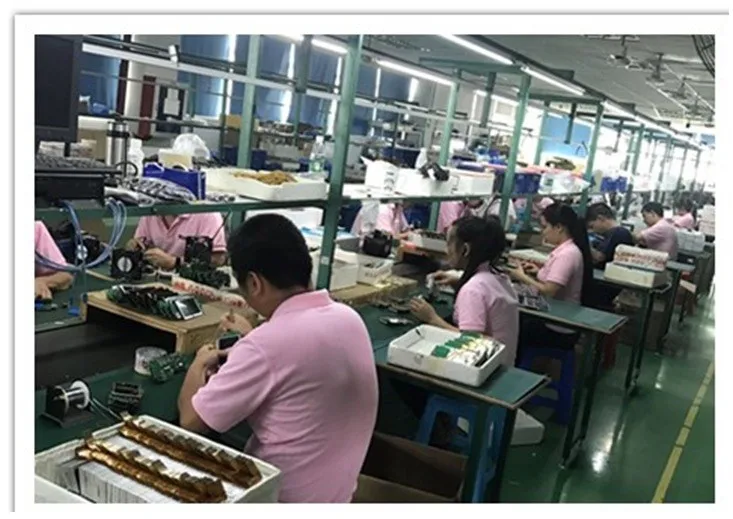
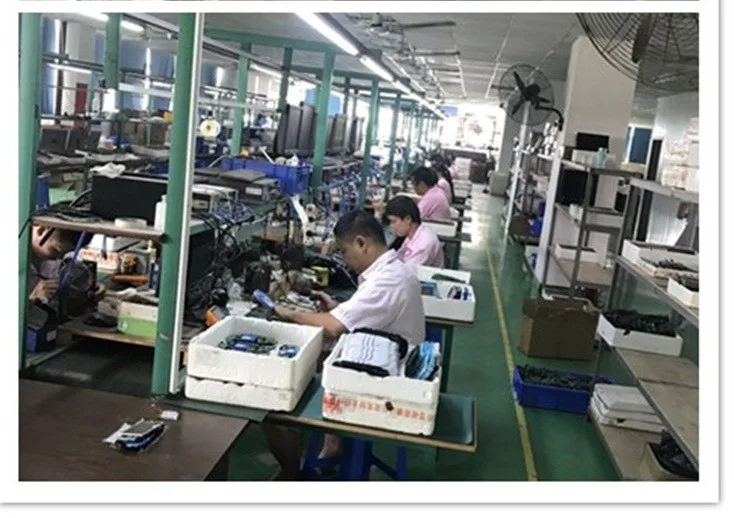
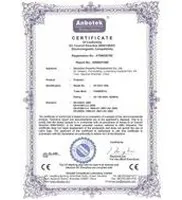
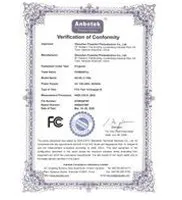
Certifications


We Recommend
New Arrivals
New products from manufacturers at wholesale prices