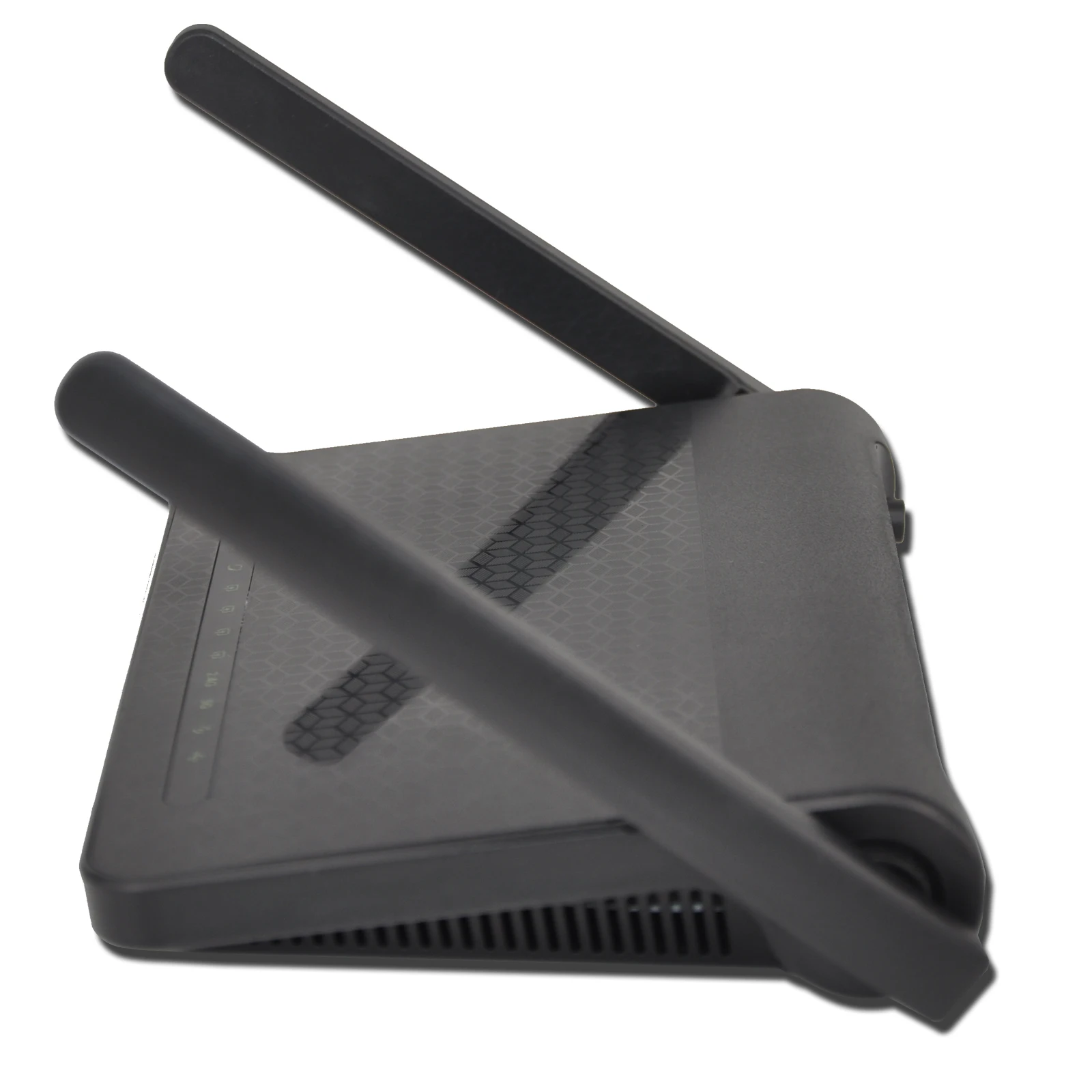
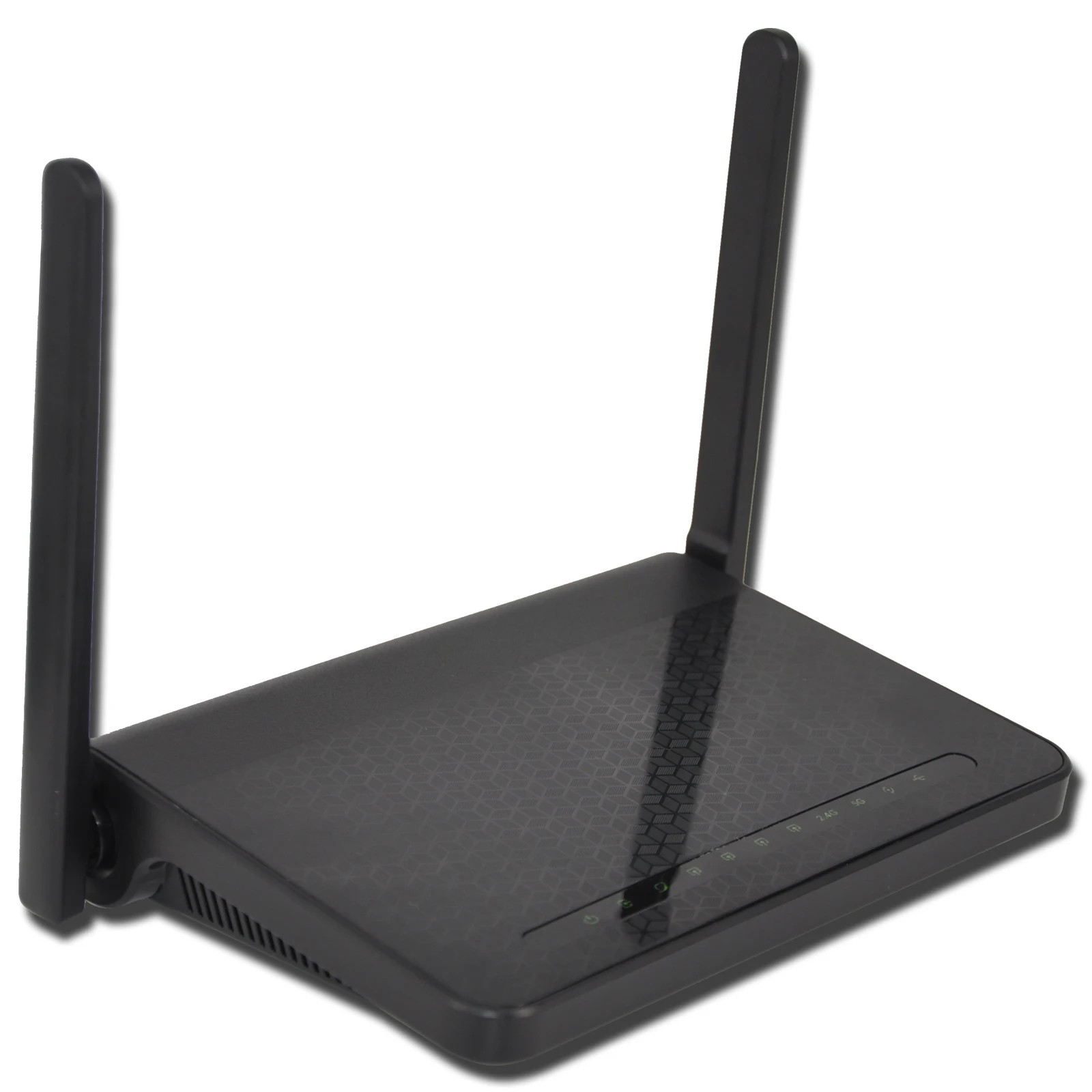
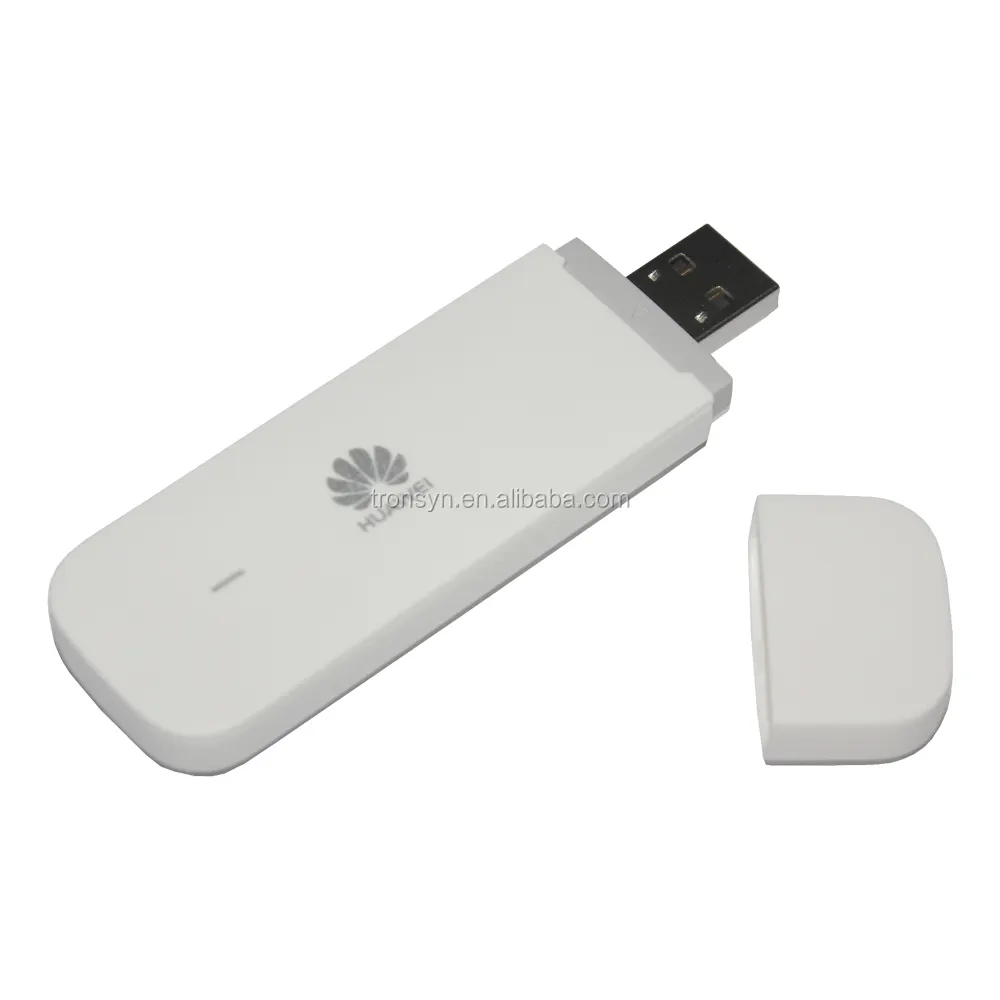
100% unlocked usb dongle modem E303s-2 wifi router
US $4.30-$4.86
Share on (1601284286017):



Parameter | Specifications | |||||||||||
System Specifications | ||||||||||||
Chipset | Triductor VSPM300 | |||||||||||
DRAM | DDR3 1Gbit | |||||||||||
Flash | NAND 1Gbit | |||||||||||
Wi-Fi | 2.4GHz 802.11b/g/n 2T2R -- MT7603 5GHz 802.11b/g/n/ac 2T2R-MT7612E | |||||||||||
Features and Technical Specifications | ||||||||||||
ADSL Features | = T1.413i2, G.992.1 = G.dmt, G.992.2, G.lite = G.992.3 (G.bis/ADSL2) = G.992.5 (ADSL2+) = ITU G.994.1 (G.hs) = Annex L (Reach Extended ADSL2) = Support ATM forum UNI3.0, 3.1 and 4.0 permanent virtual circuits (PVCs) = Support CBR, UBR, VBR-rt, VBR-nrt = Support multiple PVCs Support ITU-T i.610F4/F5 OAM | |||||||||||
VDSL Features | = ITU-T G.993.2 VDSL2 = Support 8a,8b,12a,12b,17a,30a profile = Support G.vector = Support ATM and PTM = Support G.INP | |||||||||||
Protocol Features | = RFC2684 multiprotocol Encapsulation over ATM Adaptation Layer 5 = RFC1483 multiprotocol Encapsulation over ATM Adaptation Layer 5 = RFC2364 PPP over ATM ALL5 (PPPoA) = RFC2516 PPP Over Ethernet (PPPoE) = RFC1662 PPP in HDLC-like Framing = RFC1332 PPP Internet Protocol Control Protocol = RFC1577/2225 Classical IP and ARP over ATM (IPoA) = RFC894 A Standard for the Transmission of IP Datagrams over Ethernet Networks = RFC1042 A standard for the Transmission of IP Datagrams over IEEE 802 Networks = MER (a.k.a IP over Ethernet over AAL5) = Support ALG (Application Level Gateways) = IEEE802.3 = IEEE802.3u = IEEE 802.11b = IEEE 802.11g = IEEE 802.11n = IEEE 802.11ac | |||||||||||
Bridging Features | = Self-learning bridge (IEEE 802.1D Transparent Bridging) = At least 64 learning MAC addresses = Support IGMP snooping | |||||||||||
Routing Features | = RFC768 User Datagram Protocol (UDP) = RFC791 Internet Protocol (IP) = RFC792 Internet Control Message Protocol (ICMP) = RFC793 Transmission Control Protocol (TCP) = RFC826 An Ethernet Address Resolution Protocol (ARP) = RFC862 Echo Protocol = Support IP routing = Support transparent bridging = Support source and destination routing = Support DHCP server/client = Support UPnP = Support NAT,NAPT = Support DMZ = Support IP QoS = Support IGMP proxy = Support IPv6 | |||||||||||
Management | = Device Configuration, Management and Update = Web based GUI = Localization support = Embedded web server = Download image via HTTP, TFTP server, FTP server = Command Line Interface via serial port, telnet, or ssh = Menu-driven CLI via serial port or telnet = Universal Plug and Play (UPnP) Internet Gateway Device (IGDv1.0) = WAN Management Protocol (TR-069) = SNMP v1/v2 = PSI configuration file upload and download = Date/time update from SNTP Internet Time Server | |||||||||||
Security | = Three-level login including local admin, local user, and remote technical support access = Service access control based on incoming interface: WAN or LAN = Service access control based on source IP addresses = Protect DOS attacks from WAN: SYN flooding, IP surfing, ping of Death, fragile, UDP ECHO (port 7), teardrop, land = PAP (RFC1334), CHAP (RFC1994), MSCHAP for PPP session = IP filter, Parental control | |||||||||||
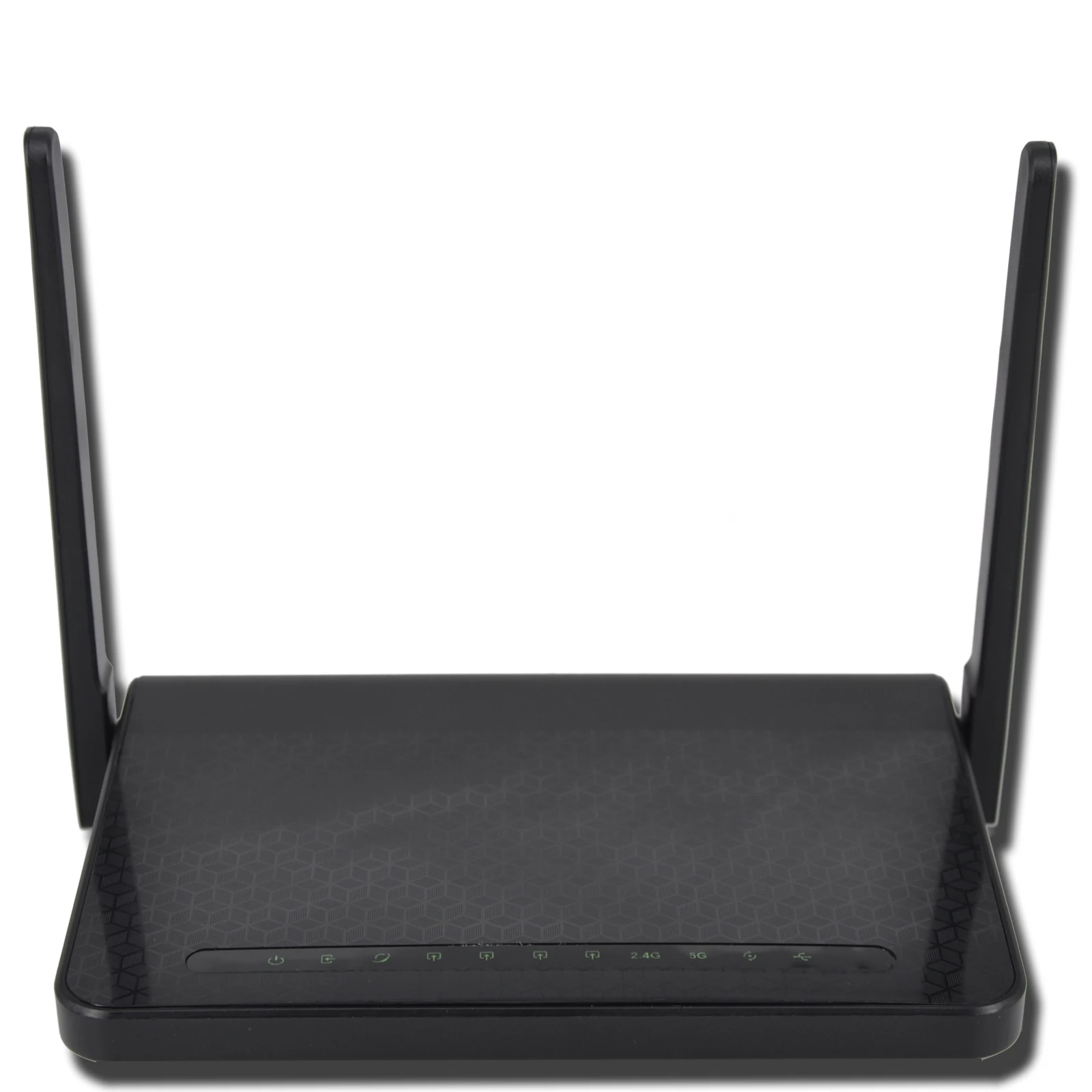
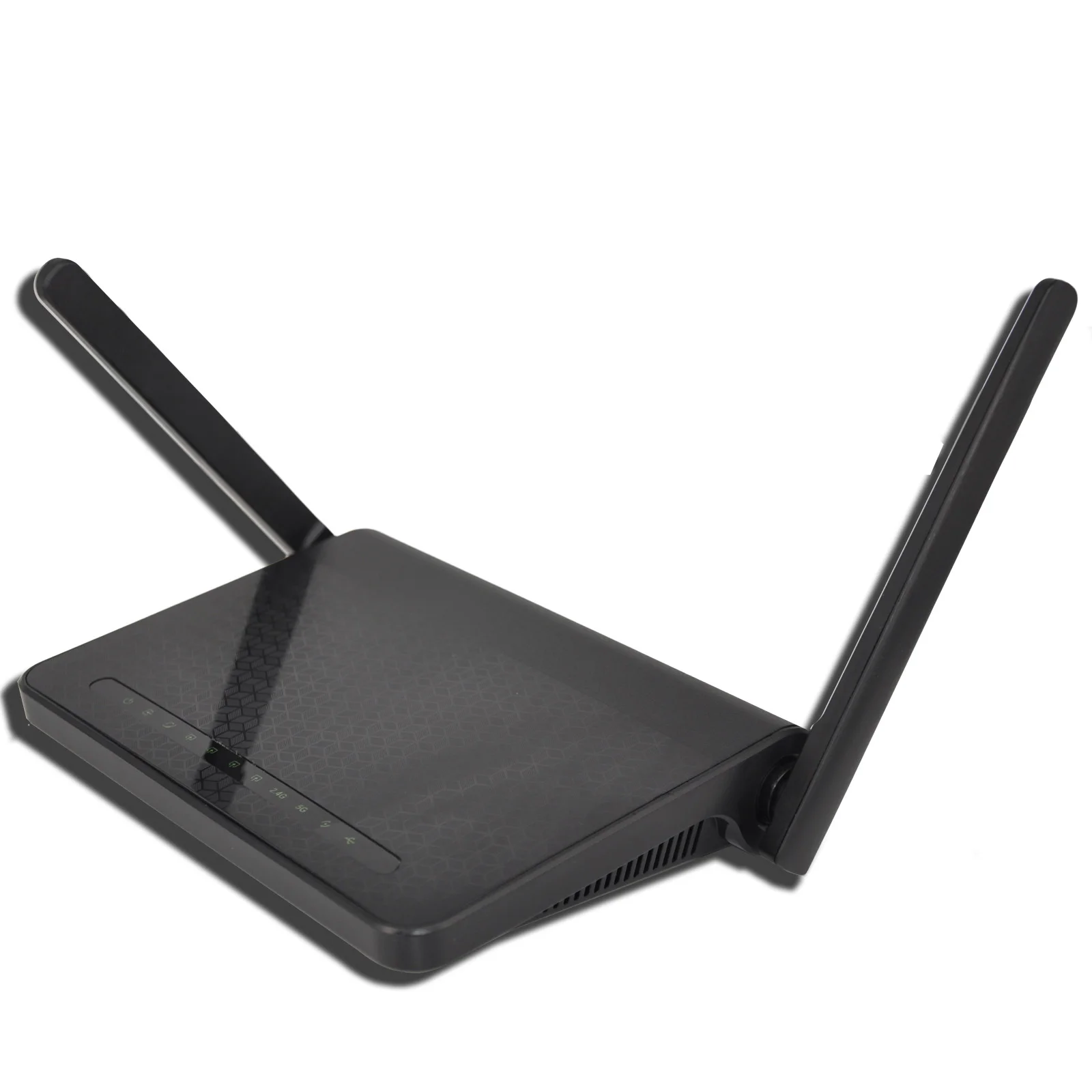
Wireless Features | Standard | IEEE802.11b/g/n/ac | ||||||||||
Security | 64-bit, 128-bit WEP, AES, TKIP, WPA, WPA2, 802.1x | |||||||||||
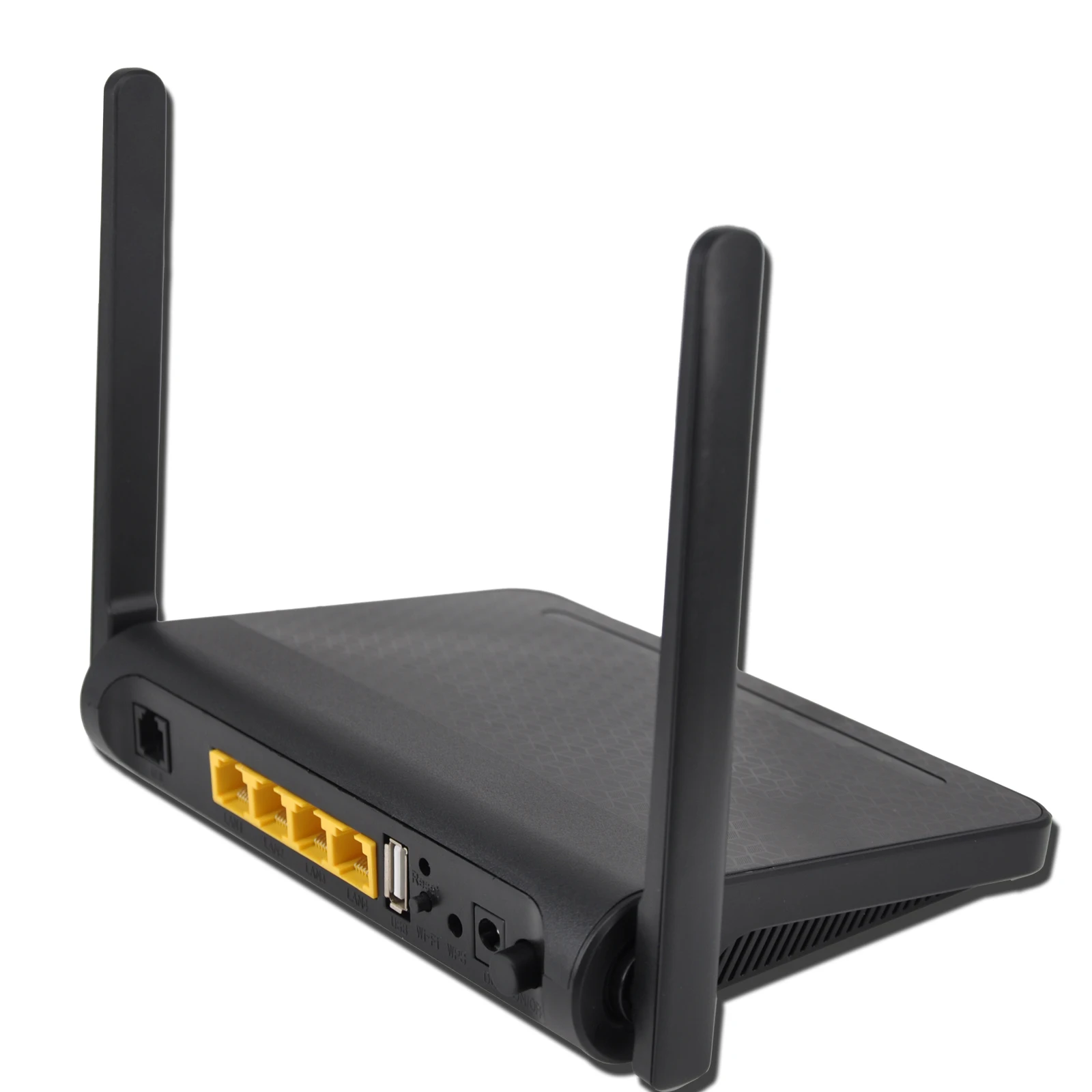
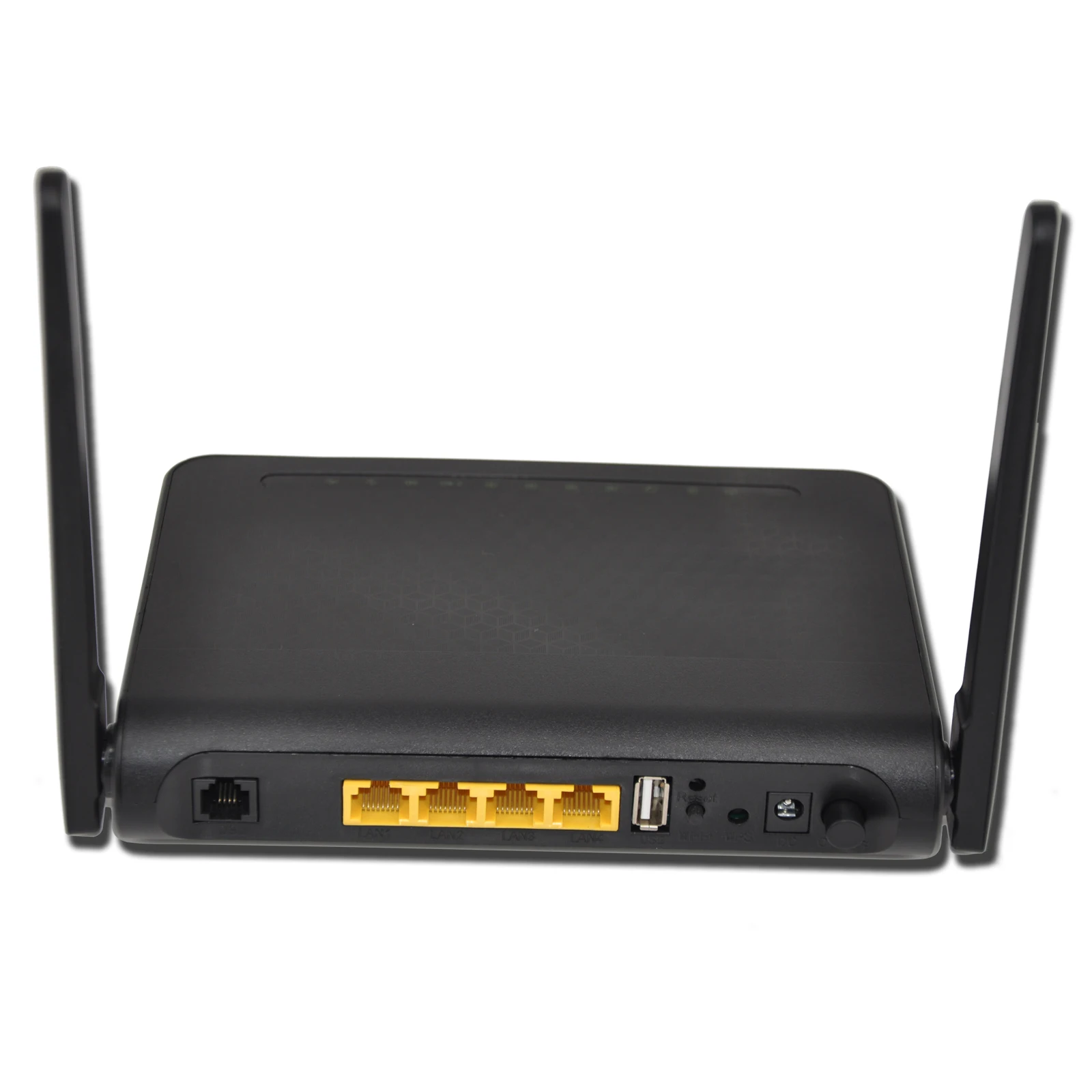
External Connectors | = 1 x VDSL interface = 4 x RJ45 10M/100M LAN Ethernet Interfaces = 1 x USB 2.0 host(optional) = 1 x reset button = 1 x WPS button = 1 x WLAN button = 1 x power jack = 1 x power switch | |||||||||||
Environment Requirement | ||||||||||||
Operating Temperature | 0ºC—40ºC | |||||||||||
Storage Temperature | -20ºC—70ºC | |||||||||||
Operating Humidity | 10%—95%, non-condensing | |||||||||||
Storage Humidity | 5%—95%, non-condensing | |||||||||||
Power Supply | 12VDC, 1.0 A/1.5A(with USB port) | |||||||||||
Consumption | 12W/18W (including power Adapter) | |||||||||||
EMC and Safety | ||||||||||||
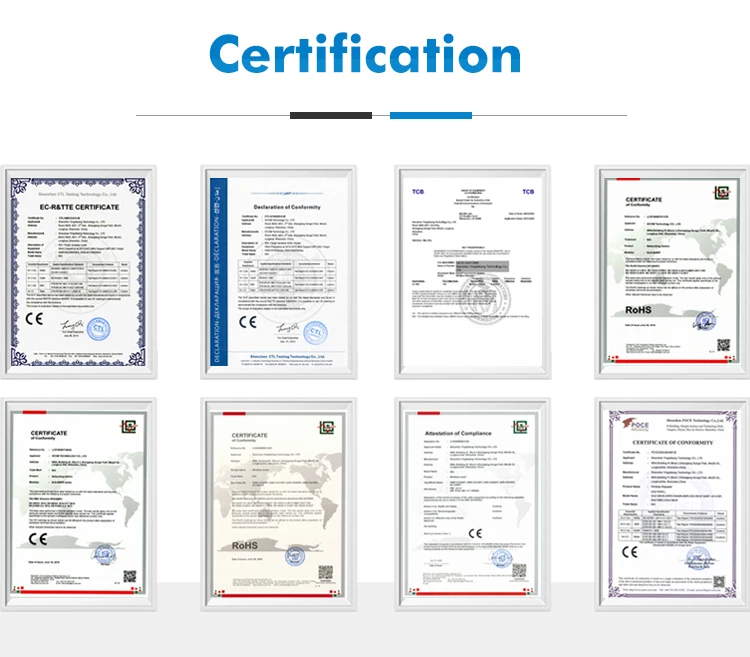
Regulation Compliance | = CCC Class B = CE | |||||||||||
Safety Regulations | UL | |||||||||||
Green Standard | RoHS | |||||||||||
Physical Characteristics | ||||||||||||
Physical Dimension | L*W*H=170*135*40mm | |||||||||||
Weight | 250g (not including power adapter) | |||||||||||









New products from manufacturers at wholesale prices