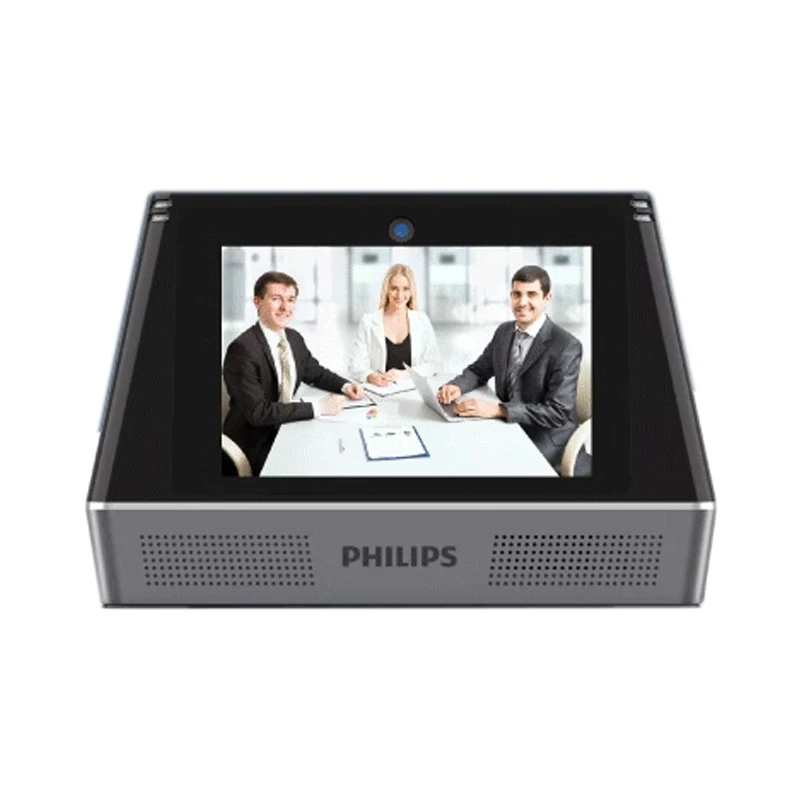
Professional 4k@30fps Ptz Video Conference Camera 5MP Streaming Video Conference Camera System With Translation VTR9800
- Category: >>>
- Supplier: Shenzhen Jing E Wah Technology Ltd. Co.
Share on (1601038818879):
Product Overview
Description
Products Description
Charger: 12V/2.5A
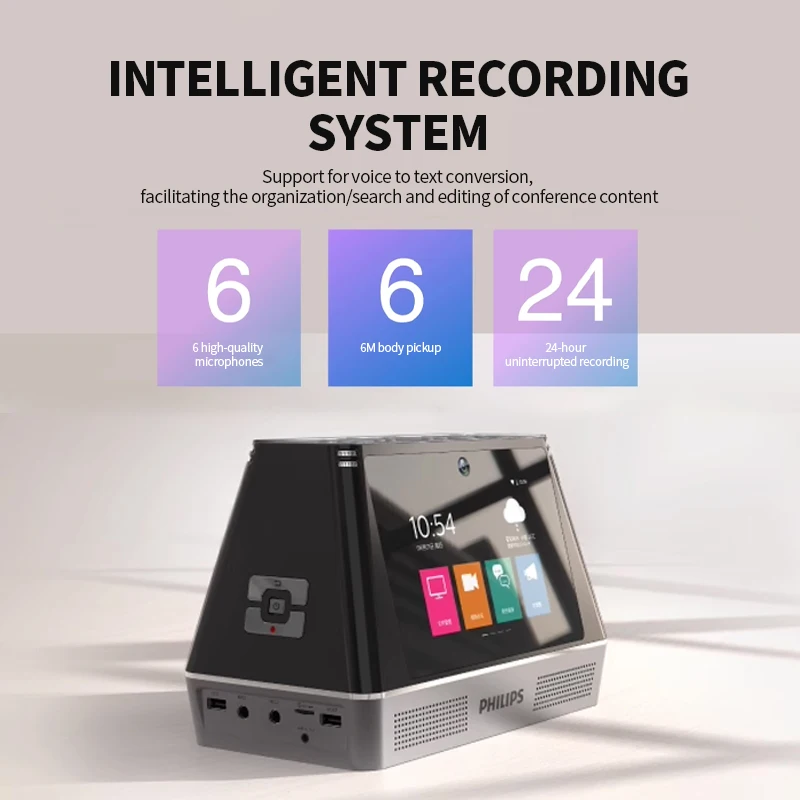
* DDR: 2G
* Flash: 16G
* Wifi: 2.4/5.0G dual-frequency WIFI, supporting WIFI 802.11ac/b/n/g
* Display screen: 7 inch (1024*600IPS) *2
* Camera: double 5 million industrial camera
* Loudspeaker: 4Ω/5W*2 stereo
* Battery capacity: 5000mAh
* USB: Type A *2(OTG/HOST), supporting USB disk, hard disk, keyboard and mouse
* TF socket *2
* wired microphone socket *2
* wired network socket *1
* HDMI socket *1
* VGA socket *1
* Audio output socket *1
* DC socket *1
* DDR: 2G
* Flash: 16G
* Wifi: 2.4/5.0G dual-frequency WIFI, supporting WIFI 802.11ac/b/n/g
* Display screen: 7 inch (1024*600IPS) *2
* Camera: double 5 million industrial camera
* Loudspeaker: 4Ω/5W*2 stereo
* Battery capacity: 5000mAh
* USB: Type A *2(OTG/HOST), supporting USB disk, hard disk, keyboard and mouse
* TF socket *2
* wired microphone socket *2
* wired network socket *1
* HDMI socket *1
* VGA socket *1
* Audio output socket *1
* DC socket *1

FAQ
This section has listed all the frequently asked questions to help you address the simple issues during the use of Smart Meeting Recorder . If such issues persist, please consult our dealers or visit our official website: www.philips.com/support.
6.1 How to quickly turn the video conference ?
There are two methods for immediately convening the video conference:
1) The initiator sets up the conference room (Smart Meeting Recorder—Videoconfer
ence—Creating a Conference Room ) and sends the room number to relevant confer
ence participants, so that the participants can participate in the conference by entering
the same room number;
2) The initiator adds contact persons as necessary (Smart Meeting Recorder—Video
conference—Contact), ticks persons to join the meeting, and clicks on “Start” to call
these persons automatically. The participants can join the conference directly if they
also use Smart Meeting Recorder. A mobile phone user has to download the Smart
Meeting Recorder app (supporting Android and IOS).
6.2 How to discuss the contents of PPT or PDF files during video conference ?
During the video conference, any participant can present the shared file or shared
whiteboard at any time for other participants, and all participants can, in the video, see
the same contents as those on screen of the sharing participant, including PPT, PDF,
WORD, EXCEL and picture files, and can carry out discussion together. All partici
pants can leave mark on file, so as to facilitate the discussion.
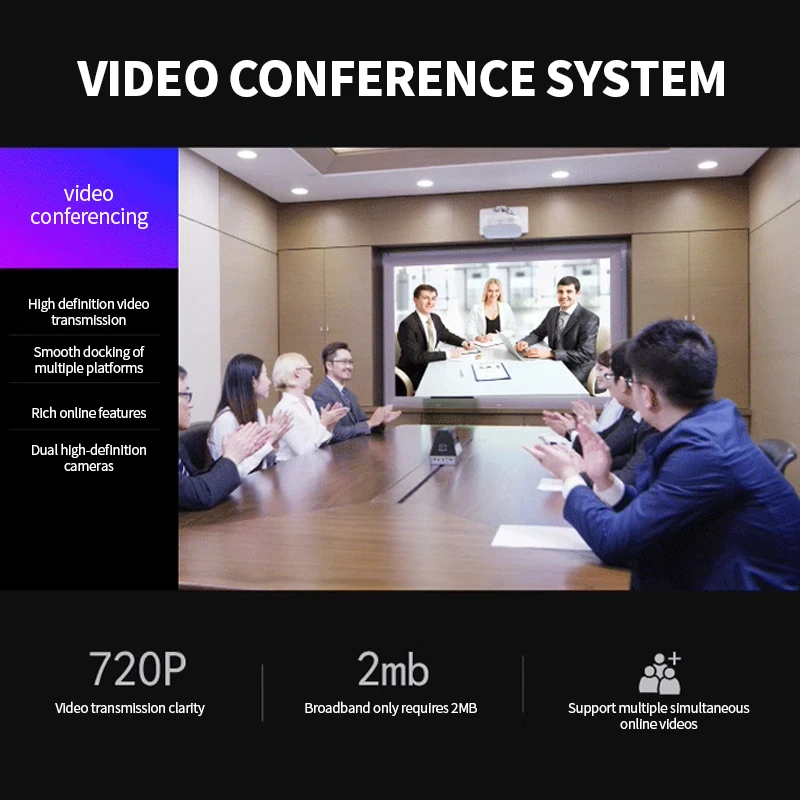
6.3 Maximum participants in video conference and requirements on network ?
The videoconference supports multiple participants and uses an industry-leading net
work optimization algorithm. A two-party or multi-party videoconference does not
make a difference to your network environment and the smoothness of the video
conference will not be affected as the number of participants increases. In order to
ensure picture and sound smoothness, the network bandwidth should not be less than
English2Mbps.
6.4 Sudden exit during multi-person video conference ?
At present, the video conference function supports the two-party video conference
without time limit and supports the multi-party video conference with the time limit
of 40 minutes. These are services provided free of charge. Upon expiration of time
limit, all participants will automatically leave the video conference. If the conference
has to be continued, you can re-initiate the conference. Alternatively, you may get your
account upgraded to professional account, and there will no time limit for multi-party
video conference initiated by professional account.
6.5 How to enter the full-screen mode during PPT speech ?
During PPT speech, press down the OK button on remote controller, and then the
PPT will automatically enter the full-screen mode. In this mode, you can use the up/
down buttons on remote controller to go to previous/next page , use the laser point
er, use the remote controller as loudspeaker and use the left/right buttons to adjust
the volume.
6.6 No response in loudspeaker function and how to change the background ?
The loudspeaker function applies to certain conference scenarios, and requires the
connection of a wired microphone or the use of a remote controller microphone
(holding it down to speak); the background of the loudspeaker screen can be changed,
and you can customize it. The picture size is 1,024x600 pixels. Please reserve a po
sition for the dynamic text display box, copy it into the unit via a USB disk, and then
click “+” in “Background Setting” on the loudspeaker screen to select the correspond
ing background.
6.7 How to automatically identify different languages by speaking in commercial interpretation?
As for commercial interpretation, the languages are set as Chinese and English by default. When you use the remote controller or externally-connected microphone, one 78 ENwill correspond to Chinese, the other will correspond to English, and the language will be automatically identified and interpreted. (If you are not sure, please say several words, and make judgment on the basis of the language displayed). If you use the built in microphone, you have to click the screen so as to change the language to be identified.
6.8 How to change the sharing sender to my own email address?
When using the email file sharing function, the email sender is the default sender of
the Smart Meeting Recorder.(vtr9800_Service@139.com), you can modify the sender to your own email.
Modification method:
Method 1, In the Settings -- Account -- Set the sender to enter the modification inter
face, and click“save”when the modification is finished;
Method 2, When you share email, the sharing interface will pop up, click "Settings" on
the sharing interface. The sender can also enter the modification interface, and click
"save" when the modification is finished.
Remind:
1. Please be sure to know the parameters required for email login (email account,
email password, host, port) when setting email sender. You can log in your official
email- check
whether SMTP service and the parameters of host/port is enabled in Settings.
2. If your email has opened a third party login authorization code, please enter the
email authorization code in the password box when setting the email sender.
3.It is recommended to use 465 for port parameter of the email sender. If sending fails,
you can try to modify 25.
4.If you are not clear about how to set the parameters of the email sender and the
email failed to send, please contact our customer service
face, and click“save”when the modification is finished;
Method 2, When you share email, the sharing interface will pop up, click "Settings" on
the sharing interface. The sender can also enter the modification interface, and click
"save" when the modification is finished.
Remind:
1. Please be sure to know the parameters required for email login (email account,
email password, host, port) when setting email sender. You can log in your official
email- check
whether SMTP service and the parameters of host/port is enabled in Settings.
2. If your email has opened a third party login authorization code, please enter the
email authorization code in the password box when setting the email sender.
3.It is recommended to use 465 for port parameter of the email sender. If sending fails,
you can try to modify 25.
4.If you are not clear about how to set the parameters of the email sender and the
email failed to send, please contact our customer service
We Recommend


New Arrivals
New products from manufacturers at wholesale prices